

How to Add a YouTube Video to a Memorial Page
You can add a YouTube video to a memorial page in four steps: upload the video to YouTube, set it to Unlisted, copy its link or embed code, and paste that into the memorial page. Then open the page in a private browser window to make sure it plays for everyone who visits. Below, we walk through each step gently and in plain language, so you can focus on the person you are remembering and not on the technology.
A service recording, a slideshow set to a favorite song, a home movie that makes everyone laugh: these are worth keeping where the whole family can find them. A memorial page gives them a permanent home, and YouTube is often the easiest way to get a large video file ready for it.
TL;DR
- Upload your video in YouTube Studio and choose Unlisted, so anyone with the link can watch it without a Google account, but strangers will not find it in search.
- Use the video’s Share button to copy either the link or the embed code, depending on what your memorial page accepts.
- Test the page in a private window and on a phone before you send it to family.
- Music can trigger a copyright claim on YouTube, so choose licensed or library tracks if you can.
- If you would rather skip the extra step, upload the video straight to the memorial page.
Table of Contents
- Link or embed: which one do you need?
- Step 1: Upload your video to YouTube
- Step 2: Choose Unlisted, not Public or Private
- Step 3: Copy the link or the embed code
- Step 4: Check that it plays for everyone
- Music and copyright: a gentle warning
- Do you need YouTube at all?
- Let family add their own videos
- Our perspective
- Keep every video, photo and story in one place
- FAQ
- Sources
Link or embed: which one do you need?
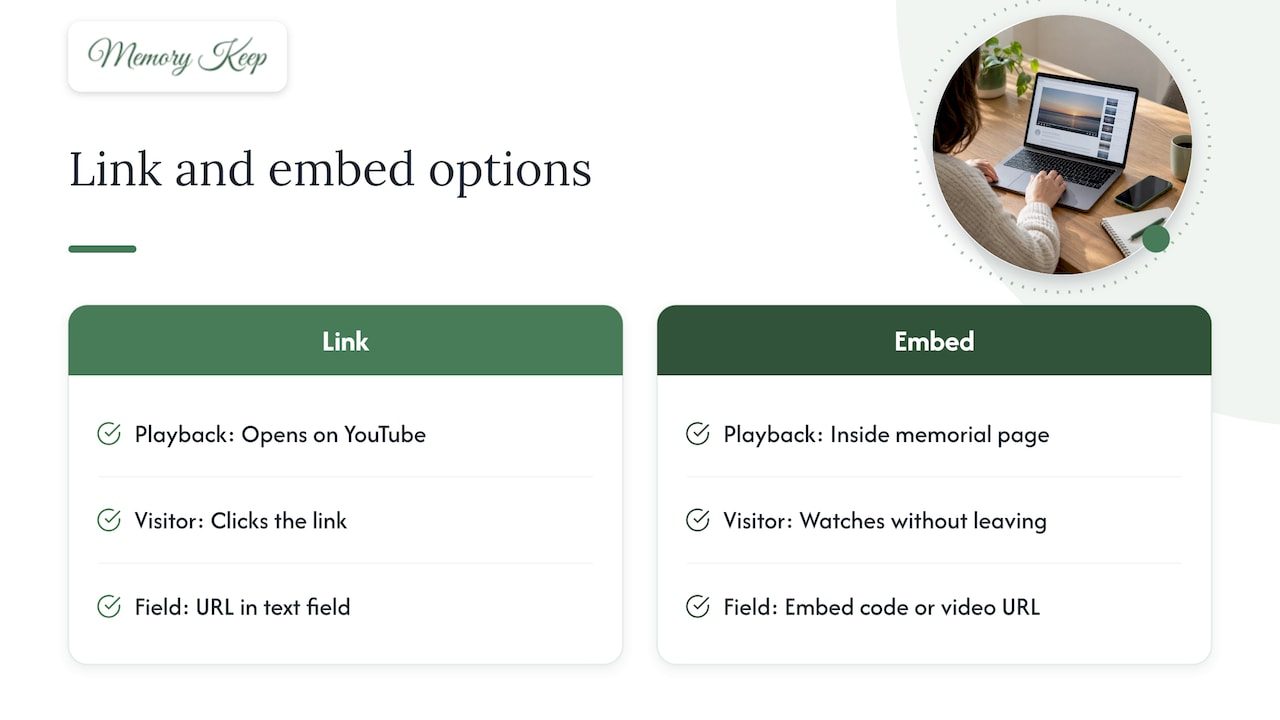
Before you touch YouTube, it helps to know what your memorial page can accept. There are two common ways to show a YouTube video on another page.
A link is the simplest. You paste the video’s web address into a tribute, a message or a text field. Visitors click it and the video opens on YouTube. It works almost everywhere, including in emails and text messages to relatives.
An embed places the video player inside the memorial page itself, so people watch without leaving. This needs a field that accepts embed code or a video URL that the page turns into a player. Not every memorial site offers one, so look for words like “embed,” “video,” “HTML” or “code” in the page editor or its help section.
If you are not sure, start with the link. You can always switch to an embed later.
Step 1: Upload your video to YouTube
YouTube’s own instructions are short. Sign in, go to YouTube Studio, click Create, then Upload videos, and select the file from your computer. You will be asked for a title, description, thumbnail and audience setting. YouTube allows up to 15 videos in one upload, which is useful if you are gathering several clips from a service or a family reunion.
A few gentle suggestions for the details:
- Title: use the person’s name and the occasion, for example “Remembering Grandpa Joe, 1941 to 2026.” Family members searching their own channel history will find it easily.
- Description: add a sentence or two about what the video shows and when it was recorded. In ten years, you will be glad it is there.
- Audience: YouTube will ask whether the video is made for kids. A memorial video for adults is not.
After the upload, YouTube needs a little time to process the file. Larger files take longer, so you may want to make a cup of tea and come back.
Step 2: Choose Unlisted, not Public or Private
This is the setting that matters most for a memorial, and the one people most often get wrong. YouTube offers three choices.
| Setting | Who can watch | Good for a memorial? |
|---|---|---|
| Public | Anyone, including through YouTube search | Only if you want the video widely found |
| Unlisted | Anyone who has the link, no Google account needed | Yes, for most families |
| Private | Only people you invite by email | Rarely, because relatives must sign in |
According to YouTube, unlisted videos can be watched and reshared by anyone with the link, and they do not appear in YouTube search or on your channel’s Videos tab unless you add them to a public playlist. Viewers do not need a Google account. That is exactly what you want when an elderly aunt or a cousin overseas needs to press play without creating a login.
A private video, by contrast, can be shared only with specified email addresses. That sounds safer, but in practice it blocks the very people you want to reach.
If you uploaded the video already and need to change the setting, open YouTube Studio, select Content, choose the video, open the Visibility menu, pick the option you want and save. The same help page describes these steps.
A note on comments
On YouTube, comments are turned off by default for private videos, but available on unlisted and public ones. If you would rather not have strangers or unkind voices leave remarks beside a tender video, you can turn comments off in the video’s settings. Many families prefer to let people write their words on the memorial page itself, where messages sit beside the photos and stories.
Think about who holds the link
An unlisted link is private only in the sense that it is unguessable. Anyone who receives it can forward it. That is usually fine for a family memorial, but it is worth deciding in advance who you send it to. If you want a clear, careful checklist for this kind of sharing, this guide to private link sharing settings covers what to check before you send a link to relatives.
Step 3: Copy the link or the embed code
Open your video on a computer and click Share under the player.
To use a link: copy the address shown and paste it wherever your memorial page accepts text or a video link.
To embed: YouTube’s instructions say to click Share, choose Embed, copy the HTML code, and paste it into the HTML or embed field of the site you are using. Only paste the code into a field intended for it. Some pages will show the code as plain text if you put it in a normal message box, which is not what you want.
If the memorial page has a video field that asks only for a web address, paste the link and the page will usually build the player for you.
When embedding is blocked
Two situations can stop an embed from working. The first is age restriction: YouTube notes that age-restricted videos cannot be watched on most third-party sites and send viewers back to YouTube. A tribute video rarely falls into this category, but it can happen if a clip is flagged. The second is an embedding restriction set by the video’s owner, which is why it is wise to use a video you uploaded yourself.
Step 4: Check that it plays for everyone
Before you share the memorial page, spend two minutes testing it. This small habit spares a grieving family the distress of a broken video at the worst possible moment.
- Open the page in a private or incognito window. If the video plays there, someone without your login can see it too.
- Try it on a phone. Many relatives will open the link from a text message.
- Press play and listen. Confirm the sound is on and the music starts where you expect.
- Open the page from the shared link, not from your editor, since that is what visitors will do.
If you see a playback error, the cause is often technical rather than something you did wrong. YouTube’s documentation explains that embedded players are meant to work inside a website, and that an embed needs the site to send a referrer header or it may show an error. Opening the embedded player’s address directly in your browser bar can fail for the same reason. In that case, test the memorial page itself, not the raw embed address. If the page still shows an error, use the plain link as a fallback and contact the memorial site’s support team.
Music and copyright: a gentle warning
Music is often the heart of a memorial video: the song that played at the wedding, the hymn at the service, the tune someone hummed in the kitchen. It is also the most common reason a video gets a notice on YouTube.
YouTube explains that an uploaded video matching content in its Content ID system may receive an automated copyright claim, which can lead to ads or the video being blocked. The result can differ by country or region, which means a video might play for you and be blocked for a relative abroad.
If this happens, you are not stuck. YouTube lets you trim the claimed section, replace the song with music from the YouTube Audio Library, or erase the song, all without uploading a new video.
To avoid surprises:
- Choose a track from a royalty-free or licensed library when you build the video.
- Upload the video as Unlisted and check it a day later. A claim, if there is one, usually shows in YouTube Studio.
- If a particular song matters deeply, consider playing it in a place where licensing is simpler, such as at a live service.
If you are still choosing the music, this article on planning memorial service music and licensing can help you think through what to play and when.
Do you need YouTube at all?
YouTube is a good choice when your video is long, when you already have it there, or when family members like to watch on a television app. It is not the only way. If your video is a modest size, you can upload it straight to the memorial page and skip hosting, privacy settings and embed codes entirely.
Here is a quick way to decide.
| Your situation | A good approach |
|---|---|
| A long service recording, over an hour | Upload to YouTube as Unlisted, then link or embed |
| A few short clips from phones | Upload them directly to the memorial page |
| A slideshow you are still editing | Finish it first, then choose where it lives |
| A video already on your own channel | Check its privacy setting, then share the link |
If you want help creating the video itself, we wrote about how a memorial video tribute comes together alongside a hosted memorial page. And if photos are where you want to begin, our guide to starting a memorial gallery with one photo is a gentle first step.
Let family add their own videos
One video rarely tells the whole story. A grandchild has a clip of the garden. A friend has a recording from a birthday. When each person has to email you a file, things get lost.
A shared memorial page lets relatives and friends contribute on their own, so the collection grows with love from many hands. You can read more in our piece on how families remember together on a collaborative memorial page, and in our overview of the benefits of an online memorial.
Our perspective
We have sat with many families who have a video that means the world to them and no idea where to keep it. It sits on a phone, or in an email, or on a channel that only one person can log in to. Grief is hard enough without worrying that a precious recording will disappear.
That is why we believe a memorial should gather everything in one place, and keep it. At Memory Keep, each memorial has its own unique link that you can share with family and friends anywhere in the world. You can add photos, videos, audio and written tributes, and visitors can leave messages of remembrance. We built it with a one-time payment, with no subscriptions or renewals, because a memorial should not depend on a monthly bill. We do not run ads and we do not sell data, because this is a place for remembering and not for being sold to.
YouTube can be a helpful partner when a file is large or when you already have a video there. But we think the video belongs beside the stories, the photos and the voices of the people who loved them. A single link, shared with care, can hold all of it.
Memory Keep
Keep every video, photo and story in one place
If you would like the video to live alongside photos, tributes and messages from family, you can start a memorial with us for free. The free plan has limited uploads and features. The Full plan is a one-time $15 payment per memorial that unlocks unlimited photos, videos and features, with no subscription and no renewal. Every memorial also gets a shareable link and a scannable QR code, which you can place on a program card or a headstone.
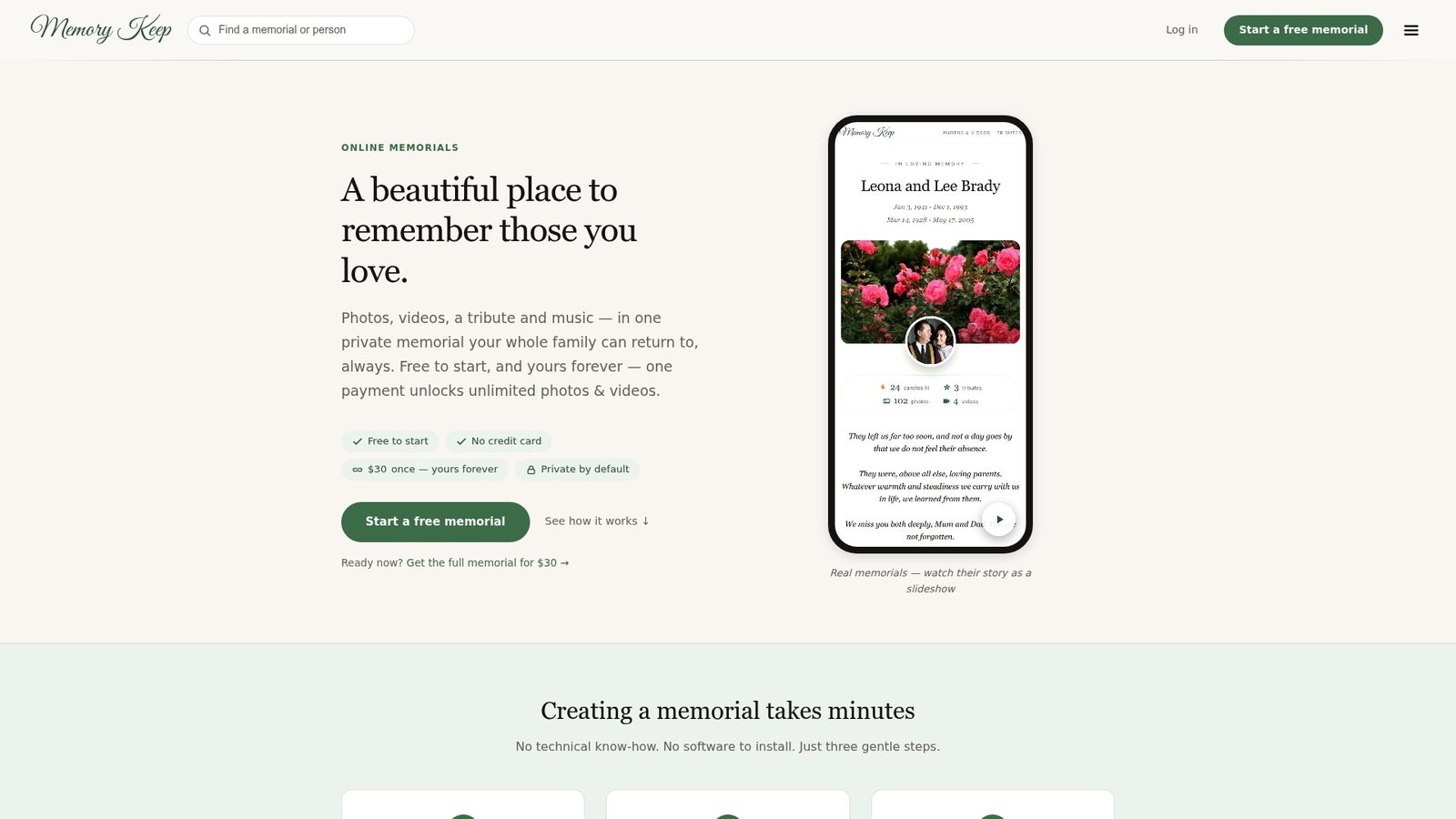
You can see how the pieces fit together on our features page, or look at a finished example, such as a memorial for a beloved dog named Buddy.
FAQ
Should I choose Unlisted or Public for a memorial video?
For most families, Unlisted is the better choice. Anyone with the link can watch without a Google account, but the video does not appear in YouTube search or on your channel’s Videos tab. Choose Public only if you want people outside your circle to find it.
Can I embed a Private YouTube video on a memorial page?
It is not a good idea. Private videos can be shared only with specified email addresses, so relatives without an invitation will not be able to watch. Switch the video to Unlisted in YouTube Studio, under Content and then Visibility, and the embed or link will work for anyone who visits the page.
Why does my embedded video show an error?
The most common cause is testing the player outside the page it was made for. YouTube says embedded players expect to run within a website, so opening the embed address directly can fail. Test the memorial page itself, and use a plain link if the error continues.
Can I use a copyrighted song in a memorial video?
You can upload it, but YouTube may place a copyright claim that blocks the video, adds ads or varies by country. If that happens, you can trim the claimed section or replace the song with music from the YouTube Audio Library. Choosing licensed music from the start avoids the problem.
Sources
- Upload YouTube videos, YouTube Help
- Change video privacy settings, YouTube Help
- Change video privacy settings (UK English), YouTube Help
- Embed videos and playlists, YouTube Help
- Video ve oynatma listesi yerleştirme, YouTube Yardım
- Learn about copyright claims, YouTube Help
- Remove copyright-claimed content from videos, YouTube Help
- Private link sharing settings to check
- Planning memorial service music and licensing