

Trim the clip first, export it as MP4 using the H.264 codec, then choose a target-size or moderate-bitrate setting so the file fits your platform. That combination handles most memorial videos in one pass. If the video will play at a service, send a test file to the venue ahead of time so someone can confirm it opens and plays correctly on their equipment.
TL;DR:
- Use target sizes slightly under platform limits, such as 5-10% below the cap, to account for size estimation drift during compression.
- Aim for 720p to 1080p resolution with a moderate bitrate of 2 to 5 Mbps for messaging apps, and keep 1080p or 4K for venue playback, depending on the device.
- Always test the compressed video on at least two different devices, including the actual playback system, to identify and fix playback issues before the event.
- Store an original, uncompressed copy safely, as reusing high-quality footage later may be needed for keepsakes or future presentations.
- Hosting the full-quality video on a memorial webpage avoids size limitations altogether and simplifies sharing without re-compression.
Table of Contents
- What to Do Before You Compress Video for a Memorial
- How Do You Actually Compress a Memorial Video?
- What Settings Should You Use for Email, Messaging, or a Venue?
- Which Compression Tool Fits Your Situation?
- What Should You Check Before a Video Plays at a Service?
- What Do You Do If the Compressed Video Doesn’t Play Right?
- Why Hosting a Memorial Video Beats Emailing It
- Skip the Compression Math With a Hosted Memorial Page
- Sources
What to Do Before You Compress Video for a Memorial
Before you touch any settings, a few small decisions save you from redoing the work later. Grief already takes enough of your energy. This checklist keeps the technical part simple so you can focus on what the video actually holds: someone’s voice, a laugh, a moment you don’t want compressed into blur.
Start with these steps in order:
- Trim first. Cut anything that doesn’t need to be there before you compress. Removing unnecessary footage before re-encoding almost always produces a cleaner result than compressing a long clip aggressively.
- Back up the original. Save an untouched copy somewhere safe before you export anything smaller. You may want the full-quality version again someday, maybe for a keepsake video or a slideshow years from now.
- Pick MP4 with H.264 video and AAC audio. This pairing plays on nearly every device, browser, and TV without extra software.
- Decide where the video is going. Email, a group text, or a screen at the service each have different size limits, so know your destination before you set your export options.
- Label your files clearly. Something like “MomTribute_Final_1080p.mp4” tells you and anyone helping exactly what they’re looking at.
- Prepare two delivery options for a venue. A labeled USB drive and a hosted link cover you if one method fails on the day.
None of this takes long, but skipping it is how families end up re-exporting a video an hour before a service starts.
How Do You Actually Compress a Memorial Video?
Once the prep work is done, the compression itself is straightforward. You don’t need editing experience, just a little patience and the right settings.
- Trim the clip. On a phone, open the video in your default editor or a simple app and drag the start and end handles to cut dead space. On a computer, most built-in editors (Photos on Mac, Clipchamp on Windows) let you do the same in a couple of clicks.
- Choose your export format. Select MP4 with the H.264 codec. It’s the safest choice for compatibility across email clients, messaging apps, and funeral home playback systems, according to Funeral.
- Decide between target size and bitrate. If you need to fit a strict limit, like a 25 MB email cap, use a target-size export. If you just want a smaller, good-looking file with no hard ceiling, set a moderate bitrate instead, since bitrate is the main factor driving file size, more so than resolution alone.
- Run the compression. A browser-based tool like VideoCompress re-encodes the file locally on your device, so nothing uploads anywhere, which matters when the footage is personal. Cloud editors work well too if you also want to trim, add music, or grab a shareable link in the same step.
- Play the finished file before sending it anywhere. Watch the whole thing on the device you’ll actually use to share or present it, and listen closely for audio sync issues.
Pro Tip: If a compressor asks for a target size, aim slightly under whatever limit you’re working with. A 25 MB cap goes smoother if you export closer to 22 or 23 MB, since real-world file sizes tend to land a bit above the number you type in.
What Settings Should You Use for Email, Messaging, or a Venue?
Different destinations call for different targets. Guessing at bitrate math isn’t necessary. These presets cover most memorial video sharing needs.
- Email: Aim for around 25 MB. Export at 720p to 1080p using a target-size setting, or a bitrate around 2 to 5 Mbps for short clips.
- Messaging apps (WhatsApp and similar): Aim for a size that fits within typical messaging app limits, or send a hosted link instead if the video runs long. Drop resolution to 720p or lower for anything over a couple of minutes.
- Venue playback: Keep 1080p, or 4K if the venue specifically requests it, but stick with H.264 MP4 for the widest compatibility. Send a test file 48 hours before the service.
- Hosted link sharing: Export at higher quality since you’re not fighting an attachment limit, then share the link rather than the file itself.
One number is worth remembering here: when a platform enforces a strict cap, aim for your export to land 5 to 10% under that limit, not right at it. Compressors estimate final size based on duration and content, and that estimate can drift depending on how much motion or detail is in the footage. A video that calculates to exactly 25 MB might finish at 26 or 27, and that’s often enough to bounce back from an email server.
If your memorial video runs long, whether it’s ten minutes of photos and clips set to music, splitting it into two parts or hosting it as a streaming link preserves quality far better than crushing one long file down to fit a small cap.
Which Compression Tool Fits Your Situation?
The right tool depends less on technical skill and more on what you’re trying to protect: privacy, convenience, or speed. Here’s how the main categories break down.
- Local, browser-based compressors re-encode your video without uploading it anywhere. VideoCompress works this way, which makes it a strong fit for private memorial footage you’d rather not send through a third-party server. It also includes target-size modes that calculate the needed bitrate automatically.
- Cloud editors with built-in compression, such as VEED or Descript, let you trim, adjust, compress, and generate a shareable link all in one workflow. They’re convenient when you want to do light editing alongside the file-size reduction, though your footage does pass through their servers.
- Mobile apps like CapCut handle quick trims and compression directly on your phone, which suits anyone who filmed the tribute on a phone in the first place and wants to finish the whole process there.
- FreeConvert and similar cloud converters are useful when you need to switch file formats entirely, not just shrink size, since some older codecs need converting before a compressor can even work with them.
If you’re building something more polished than a single clip, tools built specifically for tributes can also help you assemble photos and video into one finished piece; a funeral slideshow maker or a look at Animoto alternatives for memorial videos covers that ground if editing, not just compressing, is what you need next.
What Should You Check Before a Video Plays at a Service?
Venue playback carries higher stakes than an email attachment. There’s no retry button once the room is full and waiting. A short checklist covers most of what can go wrong:
- Bring the file as MP4 with H.264 video and AAC audio, the combination funeral homes and event venues most reliably support.
- Send a test file or link well in advance so staff have time to confirm it plays.
- Ask the venue directly whether they prefer a USB drive or a hosted link, what device will run the playback, and which codecs that device supports, or consider using the Best Website Builder for Funeral Business to create a simple memorial website that hosts your video.
- Bring a labeled USB drive as your primary copy and a hosted link as backup, in case the drive doesn’t read on their equipment.
Some playback devices, particularly older ones tied to a projector or a funeral home’s built-in system, work best with the more basic H.264 baseline profile rather than newer high-efficiency settings. Asking about the exact device ahead of time avoids a surprise on the day.
What Do You Do If the Compressed Video Doesn’t Play Right?
Most problems after compression fall into one of a few categories, and each has a quick fix.
- File still too big: Trim further, drop resolution one step, or switch to a stricter target-size export instead of adjusting bitrate by feel.
- Blocky or blurry patches (artifacts): Raise the bitrate or lower the resolution, but change only one at a time rather than both, since bitrate does most of the work in determining quality and adjusting two variables at once makes it hard to tell what fixed it.
- Audio out of sync or stuttering: Test the file on a second device before assuming it’s broken. Sometimes the issue is the playback device, not the file.
- Confusing file versions: Keep the original safe, and label every compressed copy with its resolution or purpose so you’re never unsure which one is final.
Pro Tip: Always test a compressed video on at least two different devices, ideally one that mirrors what the venue will actually use, before calling it finished. A file that plays perfectly on your laptop can still stutter on an older projector system.
Why Hosting a Memorial Video Beats Emailing It
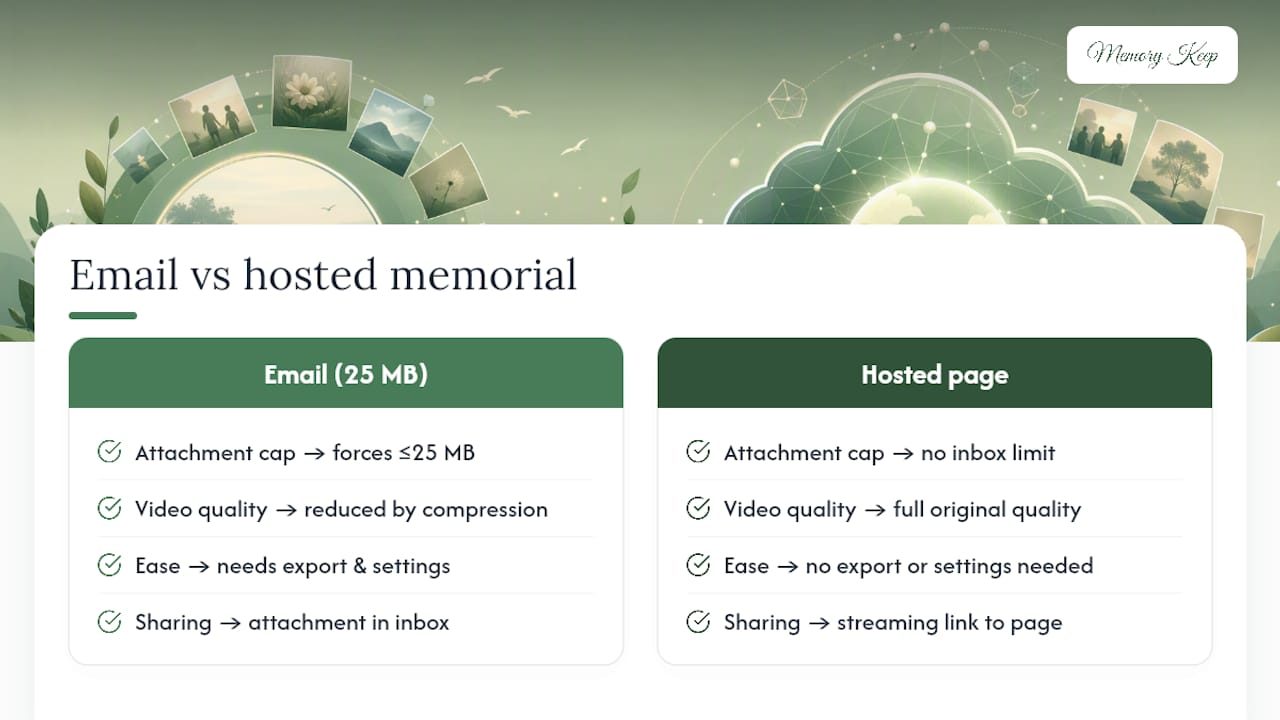
Compression solves a real problem, but it’s still a workaround for a limit that shouldn’t exist in the first place. Memory Keep hosts memorial pages so families never have to shrink a video just to make it fit through an inbox. Full quality stays intact because nothing is squeezed to satisfy an attachment cap. For families who would rather not manage settings and export windows during an already heavy time, Memory Keep also offers a memorial video tribute service that can help assemble a finished piece.
Skip the Compression Math With a Hosted Memorial Page
There’s real value in knowing how to trim and export a video yourself, and the steps above will get you through email limits, group texts, and venue playback without much trouble. But some families reach a point where they’d rather not touch bitrate settings at all, especially in the days right before a service.

Memory Keep gives you a permanent, shareable page instead of a shrinking act. Upload the original video at full quality, no compression required, since Memory Keep’s memorial pages hold unlimited photos and videos rather than forcing anything through an attachment window. Share one link with family and friends anywhere, and it plays at full resolution every time, no size caps to negotiate. If building the tribute yourself feels like one task too many right now, the memorial video service puts together a finished piece in four to five days on your behalf. And if the memorial is for a pet, Memory Keep’s pet memorial pages offer the same unlimited hosting built specifically for that loss. Start a memorial page at Memory Keep and share the link instead of another compressed file.