

For most families, Memory Keep is the most thoughtful place to start. It combines memorial-specific templates, collaborative photo uploads, licensed music guidance, and a downloadable slideshow keepsake in one quiet, dignified space. Here is what to do right now:
-
Open Memory Keep and create a free memorial page for your loved one
-
Upload your favorite photos or invite family members to contribute theirs
-
Choose a memorial template and add one meaningful song
-
Export a test copy to check how it looks on your playback device
The best funeral slideshow maker is one gentle enough to use while you are grieving and reliable enough to play without a hitch at the service. Memory Keep meets both of those needs.
Table of Contents
What features actually matter in a funeral slideshow maker?
Choosing a tribute slideshow tool under time pressure is different from choosing any other creative software. The features that matter most are the ones that reduce friction when your energy is limited.
-
Ease of use: Look for a Wizard or auto-assemble mode that arranges photos and applies transitions automatically. Drag-and-drop editing and clearly labeled controls matter more than a long feature list right now.
-
Memorial-specific templates: Tasteful design elements, muted color palettes, and clean typography signal respect. Avoid tools that default to party or vacation themes with no memorial option.
-
Music and licensing support: A built-in library of licensed tracks, filtered by mood and tempo, saves you from copyright worries. If you want to use a personal song, the tool should let you upload it easily.
-
Export and device compatibility: MP4 at 1080p plays on virtually every projector, smart TV, and laptop. Confirm the tool exports in that format before you commit.
-
Collaboration and privacy: Shared upload links let distant relatives contribute photos without emailing attachments back and forth. Private access controls keep personal images within the family.
-
File flexibility: The tool should accept JPEG, PNG, and common video formats so scanned old photographs and phone videos can sit in the same project.
-
Support resources: A help center, written guides, or responsive customer support matters when you are working against a service deadline.
Pro Tip: If you are building the slideshow the night before the service, choose a tool with an auto-assemble or Wizard mode first. You can always refine details later; what you need right now is a complete, watchable draft as fast as possible.
How do you create a funeral slideshow step by step?
A clear sequence makes the work feel less heavy. Follow these steps at whatever pace feels right.
-
Gather your photos and clips. Collect images from phones, computers, and printed albums. Use a shared memorial page to let family members upload directly, which avoids the chaos of group texts and email threads.
-
Decide on a structure. Chronological order tells the full arc of a life. Thematic order (childhood, family, friendships, passions) can feel warmer and less linear. Either works; pick the one that feels true to the person.
-
Choose a template or use auto-assemble. A good memorial template applies appropriate fonts, transitions, and color tones automatically. Auto-assemble modes arrange your photos into a complete draft in minutes, giving you a baseline to refine rather than a blank canvas to fill.
-
Arrange, trim, and caption. Sequence the photos in your chosen order, set how long each slide stays on screen, and add short captions or a meaningful quote where they feel right. Keep captions brief so viewers can absorb the image.
-
Add music or a voiceover. Choose one song for a single-tribute slideshow, or two songs for a longer memorial. Sync the slide timing to the music’s natural pauses and peaks when the tool allows it.
-
Preview and export a rehearsal copy. Watch the full slideshow before the service. Export it as an MP4 and play it on the actual device you will use at the venue.
-
Share a draft with family. Send a private link to close family members for feedback. Once everyone is satisfied, lock the final version and export the file you will bring to the service.
When gathering photos, guidance on choosing the right images can help you narrow a large collection to the ones that matter most.

How do you handle music and copyright for a memorial video?
Music is often the most emotionally charged decision in the whole process. The right song can carry a room; the wrong one, or a muted audio track on a shared video, can break the moment.
-
Match tempo to pacing. Slow, instrumental pieces work well for portrait-heavy slideshows. A slightly more upbeat song from the person’s favorite era can feel celebratory and true to who they were.
-
Use built-in licensed libraries first. When a tool offers a royalty-free music library filtered by mood and tempo, start there. These tracks are cleared for personal memorial use and remove one less thing to worry about.
-
Uploading a personal song is fine for a private service. Playing a copyrighted song at a private funeral or on a password-protected video is generally low-risk. Sharing the video publicly on social media is where copyright rules apply.
-
Public sharing carries real risk. Social platforms enforce copyright automatically. A video with a popular copyrighted song may have its audio muted or be removed entirely. The NFDA notes that music and webcasting licenses are a distinct consideration for funeral homes streaming services publicly.
-
Simple alternatives when licensing is unclear: a voiceover reading a poem or a letter, a simple piano piece from a royalty-free library, or silence during a particularly powerful photo sequence.
Pro Tip: For a curated list of songs that work well for memorial slideshows, along with notes on licensing, see Memory Keep’s guide to funeral slideshow songs. It covers both classic and contemporary choices.

How many photos should a funeral slideshow have?
Many memorial guides recommend a moderate number of photos for a single-song tribute that fits comfortably within a few minutes, without rushing viewers past each image.
-
40–60 photos per song is ideal: This range is widely recommended for a single-song tribute, offering enough time to honor each image without rushing. If you have fewer than 40 photos, increase each slide’s duration to 5–7 seconds or loop the slideshow for a reception setting. For more than 60, consider extending to a second song or trimming to favorites; a tighter selection often feels more intentional and moving.
-
Slide duration by content type: Portraits and close-up faces hold attention at 4–5 seconds. Group photos with multiple people benefit from 5–7 seconds so viewers can find familiar faces. Short video clips play at their natural length.
-
Total runtime: A service tribute typically runs 3–5 minutes. A looping reception slideshow can run 10–15 minutes before repeating. A short social-share version of 60–90 seconds works well for a single highlight reel.
Pro Tip: Add a brief caption to any photo where viewers might not recognize the people or the occasion. “Dad at 22, summer before college” gives the image context and keeps the story moving.
How do you export and play a slideshow at a funeral service?
The slideshow can be perfect on your laptop and still fail at the venue if you have not tested it on the actual equipment. A little preparation here prevents a painful moment.
Recommended export settings:
-
Format: MP4
-
Codec: H.264
-
Resolution: 1080p (1920 × 1080)
-
Audio: stereo, 44.1 kHz
MP4 at 1080p balances quality and compatibility for virtually every projector and smart TV you will encounter at a funeral home or community venue.
Venue checklist:
-
Visit the venue before the service and test the exported file on the exact projector or TV that will be used.
-
Check audio levels in the room, not just through headphones.
-
Confirm the laptop or media player you are bringing can connect to the venue’s display (HDMI, USB-C, or VGA adapter).
-
Name your file clearly: “LastName_Memorial_Final.mp4” so it is easy to find under pressure.
Backup plan:
-
Save the file to a USB drive and bring a second copy on a different drive.
-
Keep a cloud link (such as a private Memory Keep memorial page) accessible on your phone as a last resort.
-
Bring your own laptop rather than relying on venue equipment, and bring the power cable.
Desktop slideshow tools are generally more reliable for public memorials than browser-based tools because they produce uncompressed, high-quality files you can rehearse offline before the day arrives.

What does a funeral slideshow maker typically cost?
Pricing shapes vary widely. Understanding the trade-offs helps you choose without overspending during an already costly time.
| Pricing model | Typical cost | Key trade-off |
|---|---|---|
| Free with watermark | — | Watermark on exported video; often limited uploads |
| Free browser tool | — | Upload size limits; music licensing unclear |
| One-time software purchase | $40 | Full ownership; works offline; no recurring fee |
| Subscription (monthly) | $10/month | Access to premium templates; ongoing cost |
| Per-project service | — | Done-for-you; least effort; highest cost |
| Memory Keep (freemium) | Free / $15 one-time | Free tier for basic use; one-time upgrade for unlimited features |
-
Free tools work for a simple, quick tribute but often add watermarks or limit how many photos you can include.
-
One-time purchases suit families who want full control and a high-quality output file with no ongoing commitment.
-
Subscription tools make sense if you will create multiple memorials or need ongoing access to a large template library.
-
Memory Keep’s freemium model is worth noting: the free tier lets you start immediately, and a single $15 upgrade unlocks unlimited storage, full features, and downloadable keepsake slideshows permanently for that memorial. There is no monthly fee.
Why Memory Keep works well for funeral slideshows
Memory Keep was built specifically for remembrance, which means every feature is oriented toward honoring a life rather than selling a product or running an ad.
-
Memorial templates: The platform’s design uses muted, natural palettes and clean typography that feel appropriate for grief, not generic celebration.
-
Collaborative uploads: Family members anywhere in the world can contribute photos and videos directly to the memorial page using a shared link, without needing an account. This alone can save hours of file-gathering under time pressure.
-
Music guidance: Memory Keep provides resources for choosing appropriate songs and understanding when licensing matters, so you are not navigating that alone.
-
Export options: Download a keepsake slideshow video directly from your memorial page, ready to play at the service or share privately with family.
-
Privacy controls: Memorials can be kept private or shared via a unique link, giving families full control over who sees personal photos and tributes.
-
Permanent memorial page: The slideshow does not disappear after the service. The memorial page remains as a lasting space where family and friends can return, leave messages, and revisit memories.
-
Help resources: Memory Keep’s help center and written guides walk you through every step, from photo selection to final export.
Quick-start steps for Memory Keep:
-
Create a free memorial page at memorykeep.online
-
Invite family members to upload photos using the shared link
-
Use the auto-assemble feature to generate a baseline slideshow
-
Add a song and review the draft
-
Export your keepsake slideshow video
Pro Tip: After the service, keep the memorial page active as a permanent tribute. Visitors can leave messages of remembrance, and the page becomes a place the whole family can return to, not just a one-day video.
For families navigating a memorial alongside grief support needs, resources on creating a lasting digital memorial offer gentle guidance on what to preserve and how.
Key Takeaways
Memory Keep is the most thoughtful starting point for a funeral slideshow: memorial-specific templates, collaborative uploads, and a one-time $15 upgrade for unlimited keepsake features make it the most complete option for grieving families.
| Point | Details |
|---|---|
| Start with a memorial-focused tool | Choose a platform built for remembrance, not repurposed from party or vacation templates. |
| Aim for 40–60 photos per song | This range is a common rule of thumb and suits a 3–5 minute tribute without rushing viewers past each image. |
| Export as MP4 at 1080p | MP4 at 1080p plays reliably on virtually every projector and smart TV at a venue. |
| Check music licensing before sharing publicly | Use licensed tracks or a royalty-free library to avoid muted audio or takedowns on social platforms. |
| Memory Keep’s upgrade is a one-time $15 fee | No monthly subscription; one payment unlocks unlimited storage and downloadable keepsake slideshows. |
A note from us on making this easier
Creating a slideshow for someone you love is an act of care, and it deserves to feel that way rather than like a technical chore. What we have seen, again and again, is that the families who feel most at peace with the final result are the ones who let others help. Delegate the photo-gathering to a sibling or cousin. Ask someone who knew the person well to pick the song. You do not have to carry every part of this alone.
If the service is tomorrow and you are reading this at midnight, please be gentle with yourself. A simple slideshow of 30 photos and one meaningful song is a beautiful tribute. Perfection is not the goal; presence is.
When the service is over, let the slideshow live on. A permanent memorial page becomes a place the whole family can return to, not just a video that plays once and disappears. If you ever feel stuck or need support, Memory Keep’s help resources and grief insights are there for you, as is the option to reach out to a grief counselor or a community like Willow Tree Funerals’ grief support events for ongoing care.
Memory Keep is here when you are ready to begin
When you are ready to honor someone you love, Memory Keep gives you a quiet, dignified place to do it. Create a free memorial page, invite family to contribute photos from wherever they are in the world, and download a keepsake slideshow video to play at the service. The free tier lets you start right now, and a single $15 upgrade unlocks unlimited storage and full features permanently for that memorial, with no recurring fees and no surprises.
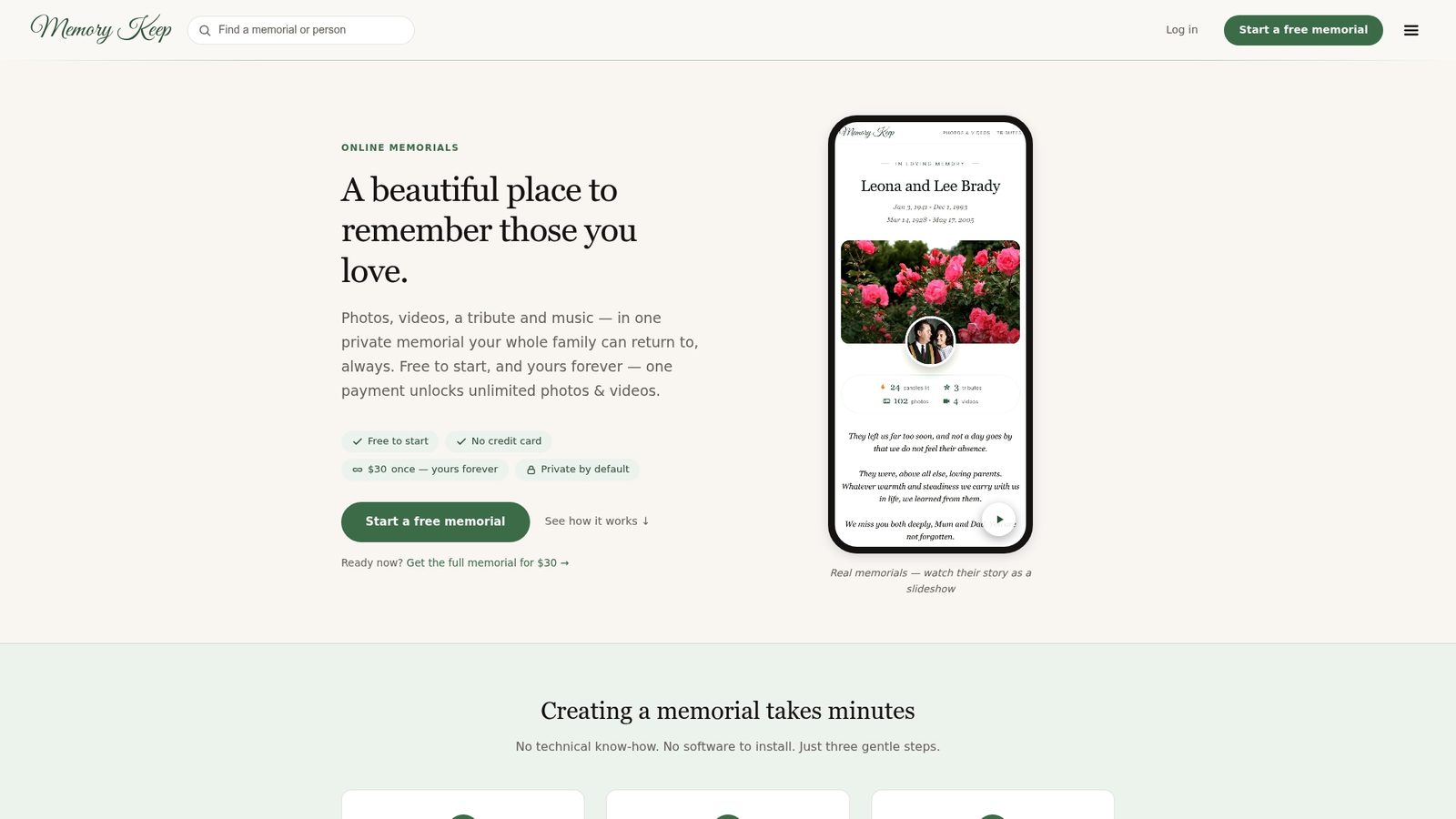
Privacy is built in: your memorial can stay completely private or be shared only with the people you choose. Memory Keep’s help center walks you through every step, from uploading the first photo to exporting the final video. If you are working against a service deadline, start there first. The guides are written for people who are grieving, not for people who enjoy reading software manuals.
Start a free memorial at Memory Keep and let the people who loved them help you tell their story.
Sources and further reading
Memory Keep resources to help you build your slideshow:
-
How to Make a Memorial Slideshow — step-by-step guide from photo selection to final export
-
Best Funeral Slideshow Songs: 2026 Guide for Families — curated music suggestions with licensing notes
-
Memory Keep Features — full list of collaboration, export, and privacy features
-
Memory Keep Pricing — free tier and one-time upgrade details
-
Memory Keep Help Center — export settings, playback guidance, and support
External references used in this article:
-
NFDA: Music and Webcasting Licenses — guidance on music licensing for funeral services and public webcasts
-
Eulogize Memorials: 8 Tips to Create a Beautiful Funeral Slideshow — practical photo-count and pacing guidance
If you are working against a tight deadline, the Memory Keep help center is the fastest place to get answers. For urgent, time-sensitive needs, the support team can be reached directly through the help page.