
The simplest, most dependable plan is a short chronological tribute lasting several minutes composed of a moderate number of photos set to a few meaningful songs, exported as a 1080p MP4, and tested on the venue equipment ahead of the service. That single plan works for nearly every funeral, celebration of life, or reception loop. Everything below helps you personalize it, expand it, and deliver it without a hitch.
Your core checklist:
- Gather a moderate number of photos organized into life chapters
- Choose a few songs the person genuinely loved
- Set each slide to a few seconds, with slightly longer duration for the opening and closing portraits
- Export as a 1080p MP4 with stereo audio
- Bring a USB backup and test on the venue screen 24 hours ahead
- Set up a shared collection link (Memory Keep, Google Photos, or a similar platform) with a clear deadline for family contributions
The National Funeral Directors Association notes that personalized tributes are among the most requested elements of modern memorial services. A slideshow is one of the most accessible ways to deliver that personalization, even when time is short and grief is heavy.
Table of Contents
- Why does a memorial slideshow matter so much?
- How do you choose the right slideshow structure?
- What photos should you include, and which should you leave out?
- How do you choose music and handle licensing?
- What about video clips, voice recordings, and captions?
- What are the technical rules for pacing, format, and playback?
- How do you collect and organize photos from family and friends?
- Should you DIY or hire a professional?
- What are some concrete slideshow templates you can copy right now?
- What do professionals recommend for a grief-aware slideshow?
- Key Takeaways
- What making a memorial slideshow actually teaches you
- Memory Keep makes the hardest part easier
- Tools, export settings, and a final setup checklist
Why does a memorial slideshow matter so much?
A slideshow does something a eulogy alone cannot. It gives every person in the room a shared visual anchor, a place to rest their eyes and their grief together. People who knew the deceased in different chapters of life, the childhood friend, the work colleague, the grandchild, all find themselves in the same story at the same time.
Beyond the service itself, a slideshow becomes a keepsake. Families return to it on anniversaries, share it with relatives who could not attend, and archive it alongside photos and letters. The benefits of an online memorial extend well past the day of the service. Grief arrives in waves, and having something concrete to return to makes those waves a little more bearable.
How do you choose the right slideshow structure?
Chronological and thematic are the two structures that consistently work. Chronological is the most common choice because it gives the audience a natural narrative arc, birth through childhood, young adulthood, family years, and later life. Thematic organizes around roles or passions: the devoted parent, the passionate gardener, the lifelong musician. A hybrid blends both, opening chronologically and closing with a thematic chapter on what the person loved most.
When to choose each:
- Chronological works best for broad audiences who knew the person across different life stages.
- Thematic fits when the person had a defining passion or role that deserves its own spotlight.
- Hybrid suits longer tributes (10–12 minutes) where you have enough photos to sustain both.
Sample outlines and timing
| Chapter | Short tribute (3–5 min) | Full tribute (7–12 min) | Seconds per photo |
|---|---|---|---|
| Opening portrait | 1 photo | 1 photo | 6 |
| Childhood | 8–10 photos | 8–10 photos | 4–5 |
| Young adulthood | 8–10 photos | 8–10 photos | 4 |
| Family / relationships | 10–15 photos | 10–15 photos | 4 |
| Later life / passions | 10–15 photos | 10–15 photos | 4–5 |
| Closing hero portrait | 1 photo | 1 photo | 15–30 |
| Estimated total | ~40 photos / 3–5 min | ~50–80 photos / 7–12 min |
Different contexts call for different runtimes: short formal tributes run 3–5 minutes, service-centered slideshows run 5–10 minutes, and reception loops play 7–12 minutes on repeat. Match the length to the room, not to how many photos you have.
What photos should you include, and which should you leave out?

Open with a recent, recognizable portrait. That single choice orients everyone in the room immediately, especially those who only knew the person in earlier years. From there, mix solo portraits with relationship shots, candid moments alongside posed ones. An imperfect candid, a blurry birthday photo, a laughing snapshot from a camping trip, often carries more warmth than a formal portrait ever could.
A practical sequence that holds up well: 8–10 childhood photos, 8–10 from young adulthood, 10–15 from family and relationship years, 10–15 from later life and passions, and one final hero portrait held for 15–30 seconds at the close. For choosing photos for a memorial, prioritize variety across life stages over volume in any single era.
What to leave out: Clinical illness photos unless the immediate family specifically requests them. Near-duplicate shots of the same event. More than two or three photos from any single occasion. Overcrowding one chapter at the expense of another creates an uneven story, and mourners notice.
How do you choose music and handle licensing?
Use the person’s real favorite music when you can. A song they played on road trips, hummed in the kitchen, or requested at every family gathering will land far more authentically than a generic instrumental. One strong song can carry an entire short tribute. For longer slideshows, 2–3 tracks split across chapters give the audio a natural shape without feeling disjointed.
- Pick music the person loved, not music that sounds like a funeral.
- Fade tracks in and out rather than cutting abruptly between songs.
- Use one consistent background track when you are mixing voice recordings or family audio contributions, so the overall volume stays balanced.
- Check licensing before you share publicly. Many venues hold blanket licenses that cover in-person playback, but posting the video online can trigger Content ID restrictions. For anything you plan to share publicly, choose royalty-free tracks or licensed music. Our guide to funeral slideshow songs includes mood-matched options and licensing notes.
What about video clips, voice recordings, and captions?
Short video clips and voice recordings are among the most moving elements you can add. A 15-second clip of someone laughing, telling a joke, or doing something they loved can stop a room in the best possible way. Use them sparingly: one or two clips per chapter at most, placed where the emotional weight is highest.
Dos and don’ts for multimedia elements:
- Do include voice recordings when you have them. Hearing someone’s voice is irreplaceable.
- Do use captions to orient viewers: “Summer 1987, Lake Tahoe” tells the story without narrating it.
- Do keep text overlays brief, two lines maximum, placed in the lower third of the frame where they do not obscure faces.
- Don’t caption every single photo. Let the images breathe.
- Don’t use more than two font styles across the whole slideshow.
- Don’t add text that narrates what the viewer can already see.
Collaborative platforms can compile varied contributions, video messages, voice notes, and written tributes, into a single cohesive file. That variety creates a fuller portrait than any one person’s photo collection alone. For caption and quote inspiration, the best memorial quotes resource offers phrases that fit naturally as text overlays.
What are the technical rules for pacing, format, and playback?
Simple is always safer. Professionals consistently advise avoiding complex transitions and very high-resolution files because many venues use older playback equipment. A soft cross-dissolve between photos and a fade-to-black at chapter breaks is all you need.
| Setting | Recommended value | Why it matters |
|---|---|---|
| Slide duration (standard) | 3–5 seconds | Keeps pacing natural without rushing |
| Slide duration (hero/opening) | 5–6 seconds | Gives emotional weight to key images |
| Final hero portrait | 15–30 seconds | Creates a dignified close |
| Export format | 1080p MP4 | Compatible with nearly all venue systems |
| Audio | Stereo, standard levels | Avoids distortion on venue speakers |
| Transitions | Soft cross-dissolve only | Avoids distraction from the content |
Playback checklist: Test the final file on the actual venue equipment at least 24 hours before the service. Bring a USB drive with the exported MP4 as a backup. Carry a laptop as a second fallback. Confirm speaker volume and screen placement with the venue coordinator in advance.
How do you collect and organize photos from family and friends?
Start with a shared collection point and a firm deadline. Without a deadline, contributions trickle in past the point where you can use them. For a service happening within a week, a 48–72 hour collection window is realistic and kind.
- Set up a shared album using Memory Keep’s collaborative upload link, Google Photos, or Dropbox. Send the link with a short message explaining what you need.
- Send a simple request. Something like: “We’re putting together a slideshow for [Name]'s service. Please share your favorite photos by [date and time]. Any era, any occasion, candid or posed, all welcome.”
- Digitize printed photos using PhotoScan (Google) or Photomyne. Both apps reduce glare and produce clean digital files from physical prints in minutes.
- Name your files clearly as you receive them:
LastName_Era_Description.jpg(e.g.,Chen_1985_Birthday.jpg). This makes sorting into chapters much faster. - Create one folder per chapter before you begin editing, so photos are already organized when you open your editing tool.
Memory Keep’s collaborative upload feature lets family members anywhere in the world contribute photos and videos directly to a shared memorial, no app download required. That single link, sent in a group text or email, often surfaces photos the immediate family never knew existed.
Should you DIY or hire a professional?
A basic DIY slideshow using Microsoft PowerPoint, Canva, Animoto, or iMovie takes roughly 4–8 hours when photos are already organized. A polished edit with multiple contributors, voice recordings, and chapter transitions can run 8–20 hours or more. That is real time during one of the hardest weeks of your life.
Professional memorial video editors in the U.S. typically charge a one-time fee that varies by complexity, turnaround time, and whether they test the file on venue equipment. Before hiring anyone, confirm these five things:
- Delivery format (you need a 1080p MP4)
- Number of revision rounds included
- Whether music licensing is handled for you
- Turnaround time relative to your service date
- Whether they will test the file on your venue’s system or provide a venue-ready version
For families who want a middle path, a platform like Memory Keep lets you collect contributions collaboratively, then export a keepsake slideshow video without hiring a full production service. For guidance on how funeral programs are prepared alongside slideshows, that family-facing resource covers the logistics well.
What are some concrete slideshow templates you can copy right now?
These templates are organized by mood and context. Pick the one that fits, adjust the photo counts to what you have, and use the run times as your target.
- Chronological life journey (50–60 photos, 7–9 min): Childhood through later life in five chapters. Close with a hero portrait and the person’s favorite song fading out.
- Family-centered tribute (35–45 photos, 5–7 min): Organized around relationships: parents, siblings, spouse, children, grandchildren. Each relationship gets its own short chapter.
- Hobby and passions montage (25–35 photos, 4–6 min): Built around what the person loved most. Gardening, woodworking, cooking, travel, music. One chapter per passion, thematic music to match.
- Travel highlights (30–40 photos, 5–7 min): Organized by destination or decade of travel. Works beautifully for someone who defined themselves by adventure.
- Faith-based tribute (25–35 photos, 4–6 min): Opens and closes with scripture or a hymn. Chapters organized around faith community, service, and family.
- Short service tribute (25 photos, 3 min): One song, five chapters of five photos each, soft cross-dissolves throughout. Designed for formal services with limited time.
- Celebration of life loop (80 photos, 10 min on repeat): Designed to play continuously during a reception. Upbeat music, candid photos, joyful moments. No chapter breaks needed.
- “If you knew them in the '70s” decade queue: One chapter per decade, each opening with a title card showing the decade. Guests from different eras recognize their shared time with the person.
- Voice and memory tribute (20–30 photos, 5–7 min): Photos play slowly while recorded voice messages from family and friends play over them. Minimal music, maximum intimacy.
- Final portrait hero template: Any of the above, closing with a single full-screen portrait held for 20–30 seconds in silence before the music fades. Simple. Unforgettable.
What do professionals recommend for a grief-aware slideshow?
Pro Tip: Test the complete exported file on the actual venue screen and speakers at least 24 hours before the service. A file that looks perfect on your laptop can look washed out or sound distorted on an older venue system.
Practitioners who work in memorial services consistently point to the same priorities: content over effects, compatibility over quality, and emotional clarity over technical ambition.
- Export as 1080p MP4 for compatibility with nearly all venue systems; avoid 4K for older projectors.
- Keep transitions nearly invisible. Soft cross-dissolves between photos, fades-to-black at chapter breaks, nothing else.
- Maintain a consistent audio level throughout. If voice recordings are louder than the music, mourners will flinch.
- Avoid overexposing final illness photos. Unless the immediate family specifically requests them, leave those images for a private family version.
- Prefer warm candid moments that invite both smiles and tears. A slideshow that only produces tears can feel heavy; one that earns a few laughs alongside them feels like a true portrait.
- Hold the final hero portrait for at least 15 seconds. That pause gives the room a moment to breathe before the service continues.
- Bring a laptop as a fallback. Venue equipment fails. Your laptop does not have to.
The grief-aware guidance that informs good slideshow choices is the same guidance that shapes good memorial practice generally: honor the whole person, protect the most vulnerable mourners, and create space for connection rather than performance.
Key Takeaways
A well-made memorial slideshow follows a clear structure: 40–80 photos in life chapters, 2–3 meaningful songs, exported as a 1080p MP4, and tested on venue equipment 24 hours before the service.
| Point | Details |
|---|---|
| Photo count and structure | Aim for 40–80 photos organized into life chapters; close with a hero portrait held 15–30 seconds. |
| Runtime by context | Short tributes run 3–5 minutes; service slideshows run 5–10 minutes; reception loops run 7–12 minutes on repeat. |
| Music and audio | Choose 1–3 songs the person genuinely loved; fade tracks and keep audio levels consistent throughout. |
| Technical delivery | Export as 1080p MP4, test on venue equipment 24 hours ahead, and bring a USB backup plus a laptop fallback. |
| Memory Keep | Use Memory Keep’s collaborative upload link to collect photos from family anywhere, then export a keepsake slideshow video directly from the platform. |
What making a memorial slideshow actually teaches you
The conventional wisdom says to start with the photos. The harder truth is that the most important decision comes before you open any software: choosing one person to be the editor and giving them the authority to make final calls. Without that, revision rounds multiply, deadlines slip, and the slideshow becomes a source of stress rather than comfort.
A single candid photo can change the entire tone of a tribute. An imperfect snapshot of someone mid-laugh, the kind of photo that might not be chosen for a formal occasion, can invite the first genuine laughter of a service and release something in the room that many formal portraits may not. That moment is worth more than technical perfection.
It is also worth knowing that you do not have to share everything publicly. Keeping a private family version with more intimate photos, and presenting a slightly edited public version at the service, is not a compromise. It is a thoughtful boundary that protects both the person’s memory and the family’s privacy. Grief is personal, and the slideshow can honor that.
Memory Keep makes the hardest part easier
Collecting photos from scattered family members is often the most exhausting part of building a tribute. Memory Keep was built to solve exactly that. You create a free memorial page, share a single link with family and friends anywhere in the world, and contributors upload photos, videos, and messages directly without needing an account.
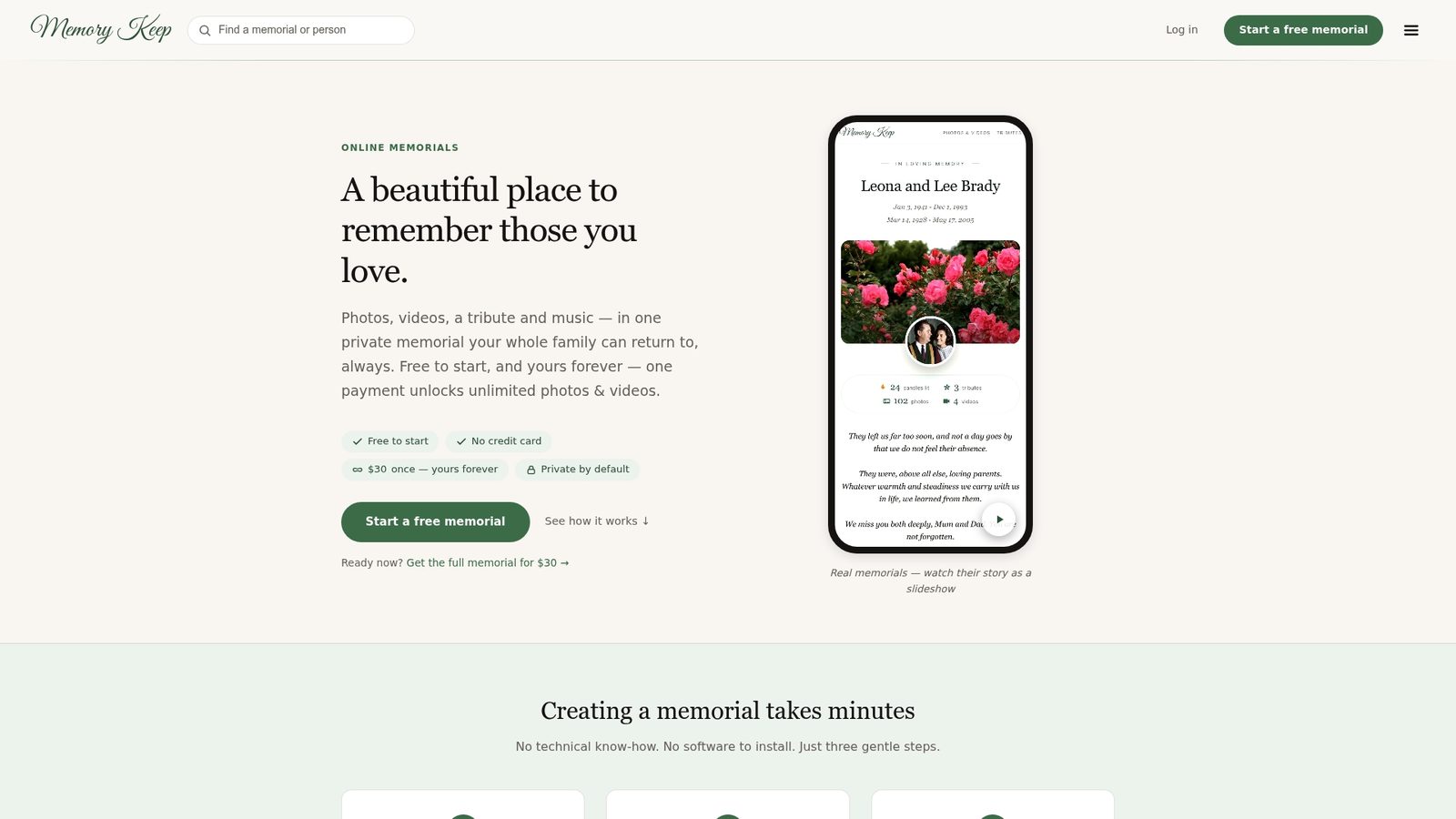
From there, Memory Keep’s export options let you download a keepsake slideshow video ready for venue playback, share the memorial page with a unique link or a QR code printed on memorial cards, and preserve everything permanently so the tribute outlasts the service. The one-time upgrade ($15) unlocks unlimited uploads and storage, with no recurring fees. For families working against a tight timeline, that single link sent to a group text can surface photos and memories that would otherwise never make it into the slideshow. Start a free Memory Keep memorial today and invite your family to contribute.
Tools, export settings, and a final setup checklist
Tools to consider:
- Memory Keep: collaborative uploads, keepsake export, shareable memorial pages, QR codes
- Google Photos: shared albums for collecting contributions; easy mobile access
- Microsoft PowerPoint: reliable, widely available, exports to MP4
- Canva: templates designed for memorial slideshows; simple drag-and-drop editing
- Animoto: template-driven workflow that reduces editing time and preserves narrative flow
- iMovie: free on Apple devices; clean transitions and audio mixing
- PhotoScan (Google): digitizes printed photos with glare reduction
- Photomyne: batch-scans physical photo albums quickly
Export settings:
- Resolution: 1080p (1920×1080)
- Format: MP4
- Audio: stereo, standard levels
- Transitions: soft cross-dissolve only; fades-to-black at chapter breaks
Final setup checklist:
- Test the exported MP4 on venue hardware at least 24 hours before the service
- Bring a USB drive with the final file
- Carry a laptop as a second playback option
- Confirm speaker volume and screen placement with the venue coordinator
- Share a compressed version with family who cannot attend, using a private link or the Memory Keep memorial page