
Most memorial slideshows belong in the 3–8 minute range, and 5 minutes is the sweet spot for a formal funeral or service. That single number answers the most common question families face when they sit down to build a tribute. From there, everything else follows a simple formula:
Photo count = music seconds ÷ seconds per photo
At 5 seconds per photo, a 5-minute slideshow needs exactly 60 photos. At 4 seconds per photo, that same runtime holds 75. Two quick examples:
- 5 minutes (300 seconds) ÷ 5s per photo = 60 photos
- 5 minutes (300 seconds) ÷ 4s per photo = 75 photos
According to expert duration guidance, 5–6 minutes is the most common sweet spot for traditional services, while 3–4 minutes works well when the service slot is strict. Keep that range in mind as you read through the guidance below — every section builds on it.
Key takeaways
A memorial slideshow in the 3–8 minute range, paced at 4–6 seconds per photo and matched to your chosen music, gives families a respectful service tribute and a foundation for a longer keepsake version.
| Point | Details |
|---|---|
| Ideal service length | Most formal services fit best with a 3–5 minute slideshow; celebrations of life can run 5–8 minutes. |
| Photo count formula | Divide total music seconds by your seconds-per-photo (4–6s typical) to get your target photo count. |
| Two-version approach | Build a short service edit first, then expand it into a longer keepsake version for the family. |
| Export format | Save as MP4 at 1080p with music embedded; test on the venue’s actual screen before the service. |
| Memory Keep | Memory Keep supports collaborative uploads, downloadable MP4 exports, and permanent memorial pages for both versions. |
Table of Contents
- How long should a memorial video be, by setting?
- Calculating your photo count: formula and cheat sheet
- Matching music and photo timing to emotional pacing
- How to include short video clips without disrupting the flow
- Selecting and sequencing photos for emotional flow
- Export settings and testing before the service
- A practical two-version workflow from Memory Keep
- A note on sensitivity and cultural considerations
- Memory Keep makes both versions easier to build
- Sources
How long should a memorial video be, by setting?
The right runtime depends on where and how the video will play. A chapel service has different needs than a backyard celebration of life, and a looping display at a wake is different still.
- Formal funeral or graveside service: 3–5 minutes. One song, focused and tight. UK Funeral Video Services notes that 30–40 photos at this length often works best for main services.
- Celebration of life: 5–8 minutes. Room for two songs and a fuller narrative arc — childhood through legacy.
- Visitation, wake, or reception: 6–12 minutes, looping. Rather than one 25-minute timeline, Funeral creating multiple shorter themed loops so guests who arrive mid-play still see a complete segment.
- Private keepsake or family archive: 8–15+ minutes. No time pressure here. Include everything the family wants to preserve.
Pro Tip: Make two versions from the start: a short service edit (3–5 minutes) for the venue, and a longer keepsake version (8–15 minutes) for the family to keep. This is the single most practical workflow decision you can make, and it costs almost no extra effort if you plan for it early.
Calculating your photo count: formula and cheat sheet
Pick your music first. The total length of your chosen songs becomes your target runtime, and every other number flows from it. PicaLuna’s slideshow guide puts it plainly: add up the duration of your chosen music, then divide by your seconds-per-photo to get your photo count.
The formula:
- Add up your music tracks to get total seconds.
- Choose a seconds-per-photo value (3–6 seconds, depending on image type and tempo).
- Divide: total seconds ÷ seconds per photo = photo count.
Example: Two songs totaling 8 minutes = 480 seconds. At 5 seconds per photo, that’s 96 photos.
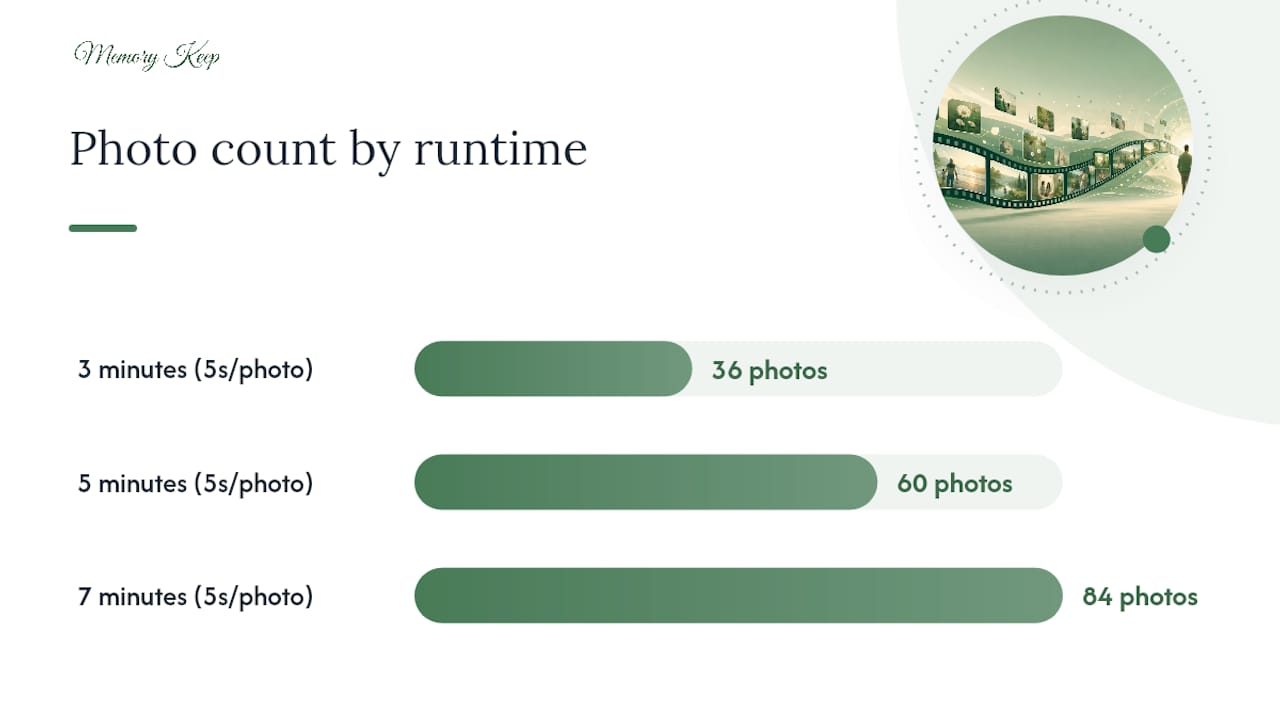
The 5s/photo column is a reliable default for most slideshows. Eva Held’s memorial slideshow resource confirms the quick conversions: 3 minutes ≈ 36 photos, 5 minutes ≈ 60 photos, 7 minutes ≈ 84 photos — all at 5 seconds per photo.
Matching music and photo timing to emotional pacing
Music does more than fill silence. It sets the pace for every image the audience sees, and choosing it first makes the rest of the editing process feel natural rather than forced.
For most slideshows, 1–2 songs is the right number. One longer instrumental track works beautifully for shorter service edits. Two songs allow an emotional shift — something tender for early life photos, something warmer or more celebratory for later ones.
- Faster tempo songs (upbeat hymns, folk, or lively favorites): use 3–4 seconds per photo to keep rhythm with the beat.
- Slower ballads or instrumentals: 5–6 seconds per photo gives each image room to breathe.
- Text slides or photo captions: hold for at least 6 seconds so viewers can read comfortably.
Place your most powerful images at lyric peaks or musical crescendos. Quiet instrumental passages work well under group photos or candid moments that need no explanation. The My Video Gift memorial guide recommends 3–5 seconds as a baseline, adjusting per image for tempo and detail — which is exactly the right instinct.
Pro Tip: Listen to your chosen songs all the way through before placing a single photo. Note where the music swells, where it quiets, and where the lyrics land. Then build your photo sequence around those moments rather than the other way around.
How to include short video clips without disrupting the flow
A few seconds of moving footage — a laugh, a wave, a voice — can carry more emotional weight than a dozen still photos. The key is keeping clips short and treating their runtime as part of your total.
- Keep individual clips to 5–10 seconds. Anything longer tends to shift the mood from tribute to home video.
- Convert clip time into photo-equivalent time: a 10-second clip at 5s/photo replaces 2 photos in your count. Subtract accordingly.
- Use clips as anchors: one near the opening to introduce the person, one at the midpoint as an emotional beat, one near the close as a farewell moment.
- Keep transitions between clips and photos smooth — a simple cross-dissolve works better than a hard cut in most cases.
Pro Tip: If you have a clip with audio — a birthday song, a toast, a voicemail — consider letting that clip’s own sound play briefly before fading back into the music. A few seconds of a real voice is something an audience never forgets.
Selecting and sequencing photos for emotional flow
Curation is where most families spend the most time, and where the most common mistake happens: keeping too many near-duplicate shots out of love rather than judgment. A tight selection of 60 meaningful photos moves an audience more than 120 similar ones.
What to prioritize:
- Photos that show personality: a signature smile, a favorite hobby, a characteristic gesture.
- Relationship photos: with a spouse, children, grandchildren, close friends.
- Milestone moments: graduations, weddings, travels, achievements.
- Candid, unposed shots — these often land harder than formal portraits.
Sequencing options:
- Chronological: Birth through later years. Simple, clear, and universally understood.
- Thematic chapters: Childhood → career → hobbies → family. Works well for longer keepsake versions.
- Emotional arc: Open with joy, move through reflection, close on legacy or love. This structure tends to feel most complete.
A simple curation workflow:
- Gather all available photos into one folder.
- Do a first pass: remove blurry, duplicate, or unflattering images without hesitation.
- Group what remains by theme or era.
- Order within each group.
- Test the sequence against your music — play it through and note where the pacing feels off.
- Trim to match your calculated photo count.
For practical sequencing ideas, Memory Keep’s memorial slideshow ideas guide offers thematic grouping approaches that work well across different runtime lengths.
Export settings and testing before the service
A beautiful slideshow that freezes on the venue screen is a painful experience for everyone in the room. Technical preparation matters as much as the creative work.
- File format: Export as MP4. It plays on virtually every venue system, laptop, and TV without compatibility issues.
- Resolution: 1080p (1920×1080) is the standard for most venues and looks sharp on large screens.
- File size: Expect roughly 250–500MB for a typical 5–8 minute slideshow at 1080p, depending on the number of video clips included.
- Music: Embed the audio track during export — do not rely on a separate audio file playing alongside the video.
- Aspect ratio: 16:9 is standard for most venue screens. Confirm with the venue if unsure.
Testing checklist:
- Play the full file on the venue’s actual screen and audio system before the service.
- Bring a backup on a USB drive and a second copy in cloud storage.
- Check volume levels — music that sounds right on headphones can be too quiet or too loud in a large room.
- Confirm the file starts at the right frame and does not begin with a black screen.
Pro Tip: Ask the venue coordinator whether they prefer you to bring a laptop or whether they have a dedicated media player. Some venues use older hardware that handles certain MP4 encodings better than others — knowing this in advance avoids last-minute scrambling.
A practical two-version workflow from Memory Keep
The most reliable approach is to build both versions at once rather than trying to shorten a long video after the fact. Here is a step-by-step plan that works even under a 48–72 hour timeline.
- Gather all photos and clips. Send a shared upload link to family members so contributions arrive in one place. Assign one person to approve the final selection.
- Choose your music and set your target runtimes. Service edit: 3–5 minutes. Keepsake version: 8–15 minutes.
- Calculate your photo counts using the formula above. Service edit at 5s/photo: 36–60 photos. Keepsake at 5s/photo: 96–180 photos.
- Build the service edit first. Use your strongest, most representative photos. This is the version that needs to be perfect.
- Expand to the keepsake version. Add the photos and clips that didn’t fit the service edit. Include more candid moments, more chapters of life.
- Export both as MP4 files and test each one.
- Share the keepsake version with family through a permanent memorial page so it remains accessible long after the service.
Memory Keep supports this workflow directly. Families can upload photos and videos collaboratively, organize them into a memorial page, and download a finished slideshow file. The platform keeps everything in one place, which matters when you are coordinating across family members in different cities under time pressure.
A note on sensitivity and cultural considerations
Every family is different, and so is every service. The timing guidelines in this article are starting points, not rules. Some religious traditions call for brevity and solemnity; others welcome a longer, more celebratory tribute. A Catholic funeral Mass may have a strict slot of 3–4 minutes, while a secular celebration of life might welcome 10 minutes or more.
Before finalizing any runtime, check with the officiant, funeral director, or venue coordinator. Ask specifically how much time is allocated for the video, whether it plays before or during the service, and whether there are any restrictions on music. Cultural and religious considerations should always take precedence over a formula.
A shorter service edit is never a lesser tribute. It is a respectful one. The keepsake version is where the full story lives — and it can be shared with family and friends long after the service ends, without any time pressure at all.
Memory Keep makes both versions easier to build
When you are grieving and working against a tight timeline, the last thing you need is friction. Memory Keep is built for exactly this moment: a place where family members can upload photos and videos from anywhere, collaborate on the selection, and produce both a service edit and a lasting keepsake without starting from scratch twice.
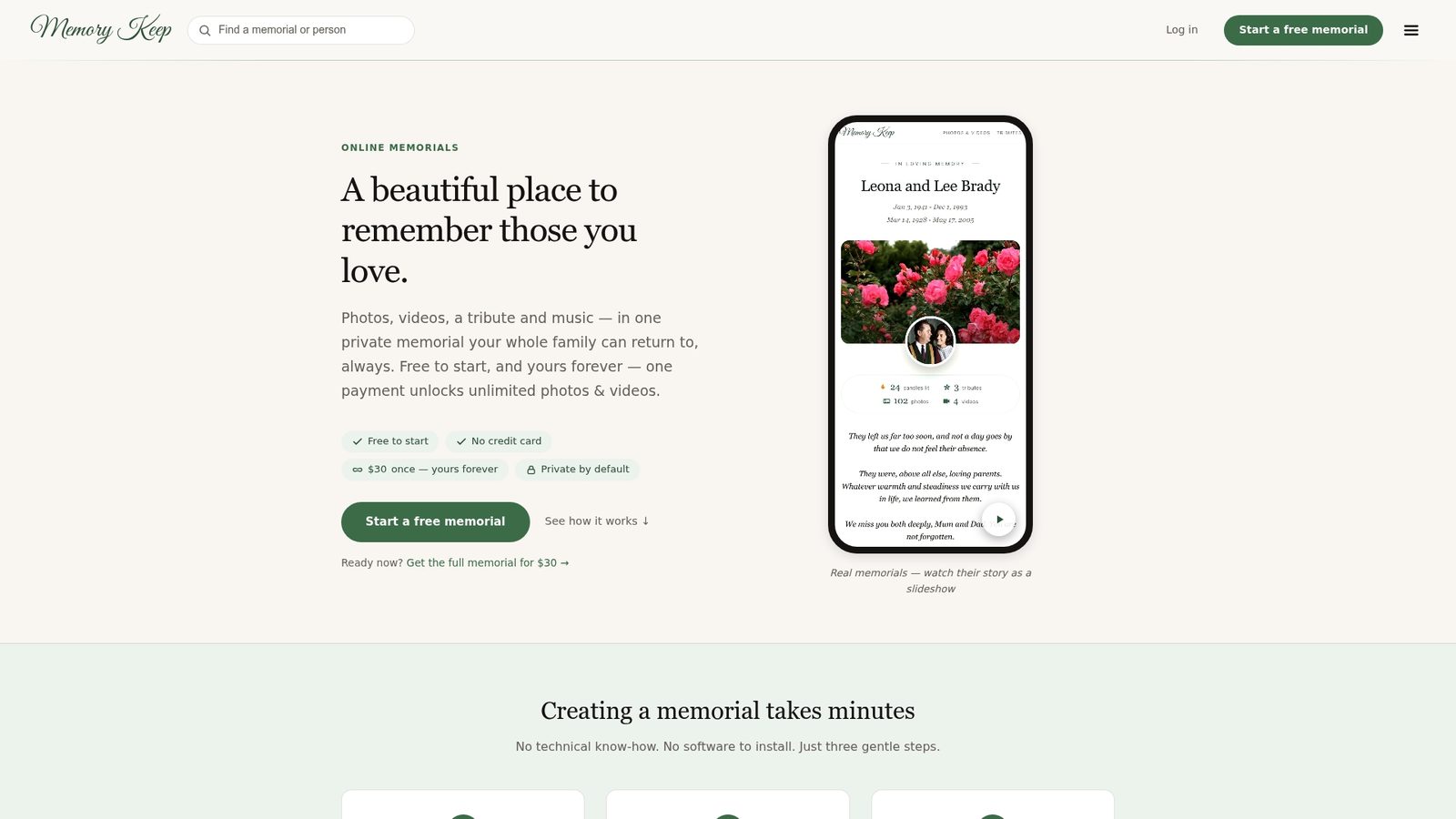
With Memory Keep’s collaborative upload links, one family member in another state can add photos the same afternoon you start building. The platform stores everything permanently, exports a downloadable MP4, and keeps the memorial page live so the keepsake video is always accessible. For families who want a physical keepsake alongside the digital version, Memory Keep also offers downloadable photo books.
The Albert Einstein example gallery shows what a finished memorial page looks like — photos, video, and tributes all in one place, shareable with a single link. To start building a memorial for someone you love, visit Memory Keep.
Sources
- How Long Should a Funeral Slideshow Be? Expert Duration Guide | Tribute Montage
- Funeral
- Creating a Memorable Slideshow for a Funeral Service | PicaLuna
- How Many Photos Should a Funeral Slideshow Have? — UK Funeral Video Services
- How to Make a Memorial Slideshow for a Funeral (Photos, Length & Songs) | My Video Gift