

How to Download a Memorial Slideshow and Keep It Safe
You can download a memorial slideshow as a video file, usually an MP4, that plays on a laptop, a phone, a USB drive or the screen at a funeral home. You can also save a memorial page as a PDF to print or hold on to. The steps below cover both, along with what to do before you press download and how to keep the file safe for years.
If you are reading this in the middle of planning a service, take a breath. You do not have to finish everything today. A slideshow is built one photo at a time, and each photo you choose is a small act of love.
TL;DR
- Download the slideshow as an MP4 video in a widescreen shape (16:9). It is the format most venue players, laptops and phones can open.
- Plan for about 15 photos a minute at four seconds each, so a five-minute slideshow needs roughly 75 photos. Fewer is fine if each photo stays on screen longer.
- To keep a memorial page as a PDF, use your browser’s print command and choose “Save as PDF.”
- Keep at least two copies on different media, one of them somewhere other than your home, and test the file on the real screen before the service.
- Memory Keep lets you build the slideshow with family, then download it as a video or a keepsake photo book, with a one-time upgrade and no subscription.
Table of Contents
- What “downloading” a memorial slideshow can mean
- Before you download: shape the slideshow
- Choosing the right file format
- How to download your slideshow from Memory Keep
- Saving a memorial page as a PDF
- Playing the slideshow at the service
- Keeping the file safe for years
- Our perspective: a download is a copy, not the whole memorial
- Making a slideshow for a pet
- Start your memorial, free or with a one-time upgrade
- Be gentle with the pace of it
- FAQ
- Sources
What “downloading” a memorial slideshow can mean
People arrive at this question with different needs, and the word “download” covers more than one of them.
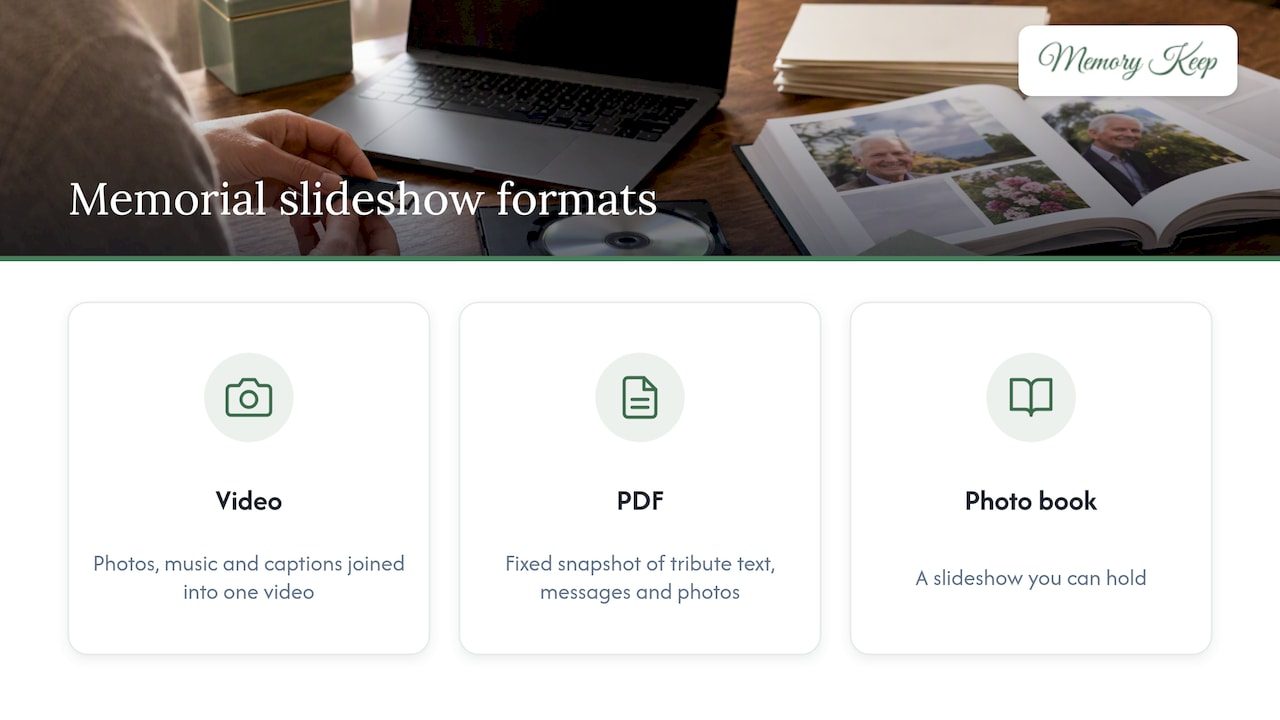
A video file. This is the most common need. The photos, music and captions are joined into one video you can play at a funeral, a celebration of life, or in your living room months later. It lives on your device, not on a website, so it will still be there if you change email addresses or phones.
A PDF of a memorial page. Some families want the tribute text, the guest messages and the photos in a form they can print, tuck into a binder or send to a relative who is not comfortable with websites. A PDF is a fixed snapshot of the page.
A keepsake book. A photo book is a slideshow you can hold. Many families make a video for the service and a book for the people who traveled to be there.
You may want all three. They come from the same collection of photos and words, so the work you do once carries across.
Before you download: shape the slideshow
The file you download is only as good as the slideshow inside it. A little planning now saves you from reopening a finished video to fix a caption that is wrong.
Gather photos from more people than you think
The best photos are rarely the ones in your own phone. Ask siblings, cousins, old coworkers and neighbors. Ask for photos where the person is laughing mid-sentence, with a pet on their lap, or in the middle of the hobby they loved. Formal portraits matter, but candid ones are the ones people lean forward to see.
On Memory Keep, family and friends can upload photos and videos to the same memorial, so you are not collecting images by text message and sorting them in a folder. If you would like to see how that works in practice, our guide to making a memorial slideshow walks through it.
Decide how long it should run
There is no rule about length, but the arithmetic is simple. At four seconds per photo, you show 15 photos a minute. That gives you:
| Slideshow length | Photos at 4 seconds each | Photos at 6 seconds each |
|---|---|---|
| 3 minutes | 45 | 30 |
| 5 minutes | 75 | 50 |
| 8 minutes | 120 | 80 |
| 10 minutes | 150 | 100 |
A slower pace feels calmer, and it gives people time to take in faces and settings. If you have more photos than the time allows, make a short version for the service and keep a longer one for family and for the memorial page itself. You can also make a one-minute version to share by text or email.
Choose an order that tells a story
Two arrangements work well. A chronological slideshow moves from childhood to the later years, which suits a long life. A themed one groups photos by chapters such as family, work, travel, hobbies and friendships, which suits a person whose life had several distinct parts. Pets often do best with a simple order: the day they came home, the early years, favorite spots, and the quiet later years.
Whichever you pick, place a strong photo first and a warm, peaceful one last. People remember how it ended.
Pick music that sounds like them
One to three songs is usually enough. A familiar song can bring people to tears, and that is sometimes exactly what the room needs. Instrumental music is gentler if you want conversation to stay possible. Our guide to memorial slideshow songs can help you narrow the list, and the Memory Keep music library is organized by feeling, so you can look for “peaceful” or “hopeful” instead of scrolling through titles.
Keep captions short
A name, a place and a year are plenty. Long captions go by too fast to read and pull attention away from the faces. If there is a story that deserves more room, put it in the tribute text on the memorial page, where people can read it slowly.
Choosing the right file format
For a slideshow, choose MP4 video. It is the format almost every modern laptop, phone, television and funeral home playback system can open, so it is the safest choice when you cannot test the equipment ahead of time.
A few practical notes:
- Widescreen (16:9) fits most projectors and televisions. Square or vertical videos will show black bars at the sides.
- 1080p (Full HD) is sharp enough for a room of mourners. A higher resolution makes a larger file that is harder to email or move to a USB drive, and it rarely improves what people see.
- File size matters. If the video is too large to send, a shorter cut or a cloud link is easier than shrinking the quality.
If the venue asks for a disc or has an older player, ask the funeral director which formats they accept. Most can tell you in one phone call.
How to download your slideshow from Memory Keep
Memory Keep memorials hold unlimited photos, videos, audio and tribute writing once upgraded, and they can generate a slideshow video and a printable keepsake from what you have gathered. The general path looks like this:
- Create the memorial. Start with the name, a favorite photo and a few words. You can begin on the free plan and add more as you go.
- Add photos and videos. Upload your own, and send the unique link to relatives so they can add theirs.
- Write a short tribute. A few paragraphs about who they were. Many families find that this is where grief becomes a little lighter, because the words are for someone.
- Choose music. Pick from the library or add a song that mattered to them.
- Preview the whole slideshow. Watch it from start to finish, ideally with someone who knew them, and check names, dates and anything sensitive.
- Download. Save the video to your computer or phone, and the photo book if you would like one.
The exact download options depend on the plan, so look at the features page for the current list before you begin.
If you want to compare approaches first, our notes on memorial slideshow templates and slideshow ideas for families show how different families have structured theirs.
Saving a memorial page as a PDF
A PDF is useful when you want the words and images of a page in a form that does not depend on a website or an internet connection. You do not need special software. The Consumer Financial Protection Bureau explains that on a Windows computer you can press Ctrl+P, choose Microsoft Print to PDF or Save as PDF, and click Print to pick where it is saved. On a Mac, press Command+P and choose Save as PDF from the PDF menu.
Some tips for a cleaner result:
- Open the memorial page and scroll to the bottom first so every photo has loaded.
- In the print window, look at the preview. If the page is cut off, try the “fit to page” or landscape setting.
- Name the file with the person’s name and the date you saved it, such as “Margaret-Ellis-memorial-page.pdf.”
- If the memorial keeps receiving messages, save a new PDF later. A PDF does not update.
A PDF is a good companion to the printed program. Memory Keep can auto-generate printable programs and keepsakes from the memorial, so the order of service, the photos and the tribute stay consistent.
Playing the slideshow at the service
A slideshow that fails to play is a heavy moment for a family that is already carrying a great deal. A few habits prevent most problems.
- Send it ahead. Give the file to the funeral director or venue at least a day before, and two days if you can. That gives them time to open it and tell you if something is wrong.
- Bring two copies. Keep one on a USB drive and one in cloud storage, so you can pull it up on a laptop if the drive is not recognized.
- Test on the real screen. Colors, cropping and volume can look different on a projector than on your laptop. Ask for a few minutes in the room before guests arrive.
- Check the sound. Music that sounded gentle on headphones can be too quiet or too loud through the venue speakers.
- Name one person to press play. Choose someone steady who is not giving a eulogy.
- Prepare a backup plan. If the screen fails, a printed photo board or a short spoken memory can fill the same space.
If some relatives cannot travel, a private link lets them watch from home. With Memory Keep, each memorial has its own shareable link, and a QR code you can place on the program or later on a headstone or card.
Keeping the file safe for years
A download is only safe if it exists in more than one place. The U.S. National Archives recommends keeping your originals after you digitize them, adding simple who, what, where and when details, and following the 3-2-1 backup approach: three copies, on two different kinds of media, with one kept off-site. The Library of Congress likewise advises saving copies on at least two types of storage in separate places and moving them to current media about every five years.
Here is how that might look for a family:
- Copy one on your computer.
- Copy two on a USB drive or external hard drive, kept in a drawer or safe.
- Copy three in cloud storage, or in the hands of a sibling who lives elsewhere.
Also keep the original photos if they are prints, and write names and years on the folder or on the back with a soft pencil. In twenty years, a grandchild will not remember who the woman in the hat was unless someone wrote it down.
A memorial page adds one more safeguard. Because it lives online, anyone with the link can visit it, add a message or see a photo they had never seen before. It is a different kind of keeping, and it works alongside the file on your drive, not in place of it.
Our perspective: a download is a copy, not the whole memorial
We have seen many families make a beautiful slideshow for a service, play it once, and then lose track of the file. The service passes, the cards stop arriving, and the video sits on a laptop that gets replaced. That is why we build Memory Keep the way we do.
A slideshow should be easy to take with you, which is why you can download it. But the memorial itself should stay in one place where everyone can find it, with no subscription that must be renewed to keep it alive. We chose a one-time payment for that reason, and we do not run ads or sell data, because a place made for remembering should not be used for anything else.
We also believe the slideshow is better when it is shared work. When cousins add the photo from the fishing trip and a former neighbor writes a message, the finished tribute holds more of the person than any one family member could have gathered alone. For couples and for two loved ones who shared a life, a joint memorial keeps their story together.
If you are unsure where to start, start with one photo and one sentence. The rest tends to follow.
— Memory Keep
Making a slideshow for a pet
Pets are family, and the loss can be sharp. A pet slideshow follows the same steps, and it can be shorter and more playful. Many families use 20 to 40 photos with a favorite song, and add a caption with a nickname, a habit or a favorite place. Include the ordinary moments: the spot on the couch, the muddy paws, the walk that always took twice as long as planned.

Memory Keep memorials are for people and pets, and you can see what one looks like in this memorial for Dixie. Download the finished video to share with children, to play at a small backyard gathering, or just to watch on a quiet evening.
Start your memorial, free or with a one-time upgrade
You can begin a Memory Keep memorial for free and add photos, messages and a tribute at your own pace. The Full plan is a one-time payment of $15 per memorial with no renewals, and it unlocks unlimited photos, videos and storage. The free plan has limited uploads and features. You can compare them on the pricing page, or see how a memorial for a person or pet comes together on the Memory Keep home page.
Be gentle with the pace of it
Making a slideshow can bring up grief in waves, sometimes at the oddest photo. That does not mean you are doing it wrong. It is part of the work. Some people find it comforting, and others need to stop for a day. Both are normal. If it helps to hear that grief has no timeline beyond the familiar stages, you are not alone in feeling that way. And if the weight begins to feel like too much, a counselor or your doctor is the right person to talk with.
Our article on twelve essential grief insights offers a few more gentle thoughts for the days ahead.
FAQ
Can I download a memorial slideshow for free?
You can start a Memory Keep memorial on the free plan, which has limited uploads and features. Check the pricing page for what each plan includes before you start, so you know whether you need the one-time upgrade for a longer slideshow. Many general-purpose presentation programs and phone photo apps can also export a basic slideshow video at no cost.
What file type should I use for a funeral slideshow?
Choose MP4 video in widescreen 16:9 at 1080p. It opens on most laptops, phones, televisions and venue players. Ask your funeral director if they need something different, such as a disc.
How many photos do I need?
Do the simple math: photos on screen for four seconds each means 15 photos a minute, so a five-minute slideshow needs about 75. If you have fewer, leave each photo up longer. A slideshow of 30 well-chosen photos is better than 100 rushed ones.
How do I save a memorial page as a PDF?
Open the page in your browser and press Ctrl+P on Windows or Command+P on a Mac. Choose Save as PDF as the destination and save it with a clear file name. Preview first to make sure nothing is cut off.
How do I keep the slideshow from being lost?
Keep three copies on two kinds of storage, with one stored away from your home, and test that the file still opens every so often. Add names and dates to the folder so future relatives know who is in each photo.
Sources
- How to save a PDF of a web page, Consumer Financial Protection Bureau
- Digitizing Family Papers and Photographs, National Archives
- Reformatting FAQ, Library of Congress Preservation