How to Save a Memorial as a PDF: A Gentle Step-by-Step Guide
You can save almost any memorial as a PDF in under a minute: open it, choose Print, and change the destination from a printer to “Save as PDF.” The exact buttons differ by browser, phone and program, so below you will find each one, plus how to check the file and how to keep a living memorial page alongside it. A PDF is a fixed copy, a snapshot. A memorial page that family can keep adding to is where the stories keep growing, and that is what we built Memory Keep for.
If you are doing this in the days after a loss, go slowly. Nothing here has to be finished today.
TL;DR
- On a computer, open the memorial, press Ctrl+P (Windows) or Command+P (Mac), and choose “Save as PDF” as the destination.
- On an iPhone or iPad, tap Share and choose Books to save the page as a PDF.
- For a funeral program in Word, use File > Save As and choose PDF, then open the file and check names, dates and photos.
- Keep the PDF for printing and email, and keep an online memorial for the photos, videos and messages that keep arriving.
- Memory Keep’s Full plan is $15, one time, with no subscription or renewal.
Table of Contents
- Why families save a memorial as a PDF
- Save a memorial webpage as a PDF on a computer
- Save a memorial page on an iPhone, iPad or Android phone
- Save a funeral program or tribute from Word
- Check the file before you share it
- Print, email and share the PDF
- When the PDF will not save
- Know what a PDF is, and what it is not
- Memorial keepsakes for people and for pets
- Put a QR code on the printed page
- A memorial that does not need a subscription
- How we think about saving a memorial
- FAQ
- Sources
Why families save a memorial as a PDF
Grief brings a quiet list of small tasks. Someone needs a copy of the tribute to print for the service. A grandparent without a computer would like a paper copy of the photos and words. A cousin wants to keep the guest messages in a folder, just in case.
A PDF suits these jobs because it looks the same wherever it is opened. Microsoft’s support pages say PDF is the format to choose when you want a file that looks the same on most computers and is meant for professional printing. That consistency matters when a program has to look right on a church printer or a print shop’s machine.
There are three common things people mean by “save a memorial as a PDF,” and each has its own method:
- Saving a memorial webpage (photos, tribute, visitor messages) from your browser.
- Saving a funeral program or tribute document you wrote in Word or a similar program.
- Saving a page on your phone so you can read or print it later.
We take them in that order.
Save a memorial webpage as a PDF on a computer
Every major browser has a built-in way to turn the page you are looking at into a PDF. The path is nearly the same everywhere: open the print menu, then pick a PDF destination instead of a physical printer.
Chrome. Click the three-dot menu, choose Print, and under Destination select Save as PDF. AARP’s guide to making PDFs walks through this, along with the steps for the other browsers.
Safari (Mac). Right-click the page and choose Print Page, then use the PDF menu and select Save as PDF.
Microsoft Edge. Choose Print and select Microsoft Print to PDF.
Firefox. Open the menu, choose Print, and select Save to PDF. Duke’s technology office adds that if you do not see it, you can pick the system print dialog and choose Microsoft Print to PDF on Windows or Save as PDF on a Mac.
The keyboard shortcut works in most of them: Ctrl+P on Windows, Command+P on a Mac.
Small settings that make a big difference
- Scroll to the bottom first. Long pages sometimes load photos only as you scroll. Moving down the whole page before you print helps every image appear in the file.
- Preview before you save. Adobe’s guidance notes that a PDF generally keeps web content better than a direct printout, but text can still be cut off, so it suggests using Print Preview and switching between landscape and vertical to find the layout that fits.
- Turn on background graphics. If colors or images vanish in the preview, look under More settings for a Background graphics option.
- Choose a page range. If the page is long, you can save only the pages you want, such as the tribute and the first few photos.
This gives you a faithful snapshot of what you saw on screen. It will not update when someone leaves a new message tomorrow, which is why many families treat the PDF as a keepsake copy and the online page as the home of the memorial.
Save a memorial page on an iPhone, iPad or Android phone
Many people first open a memorial from a text message, so the phone is often where this starts.
iPhone or iPad. Tap the Share button (the square with an arrow pointing up), then choose Books, or More and then Books. AARP explains that the PDF is saved to your device and opens in the Books app, where you can find it again later.
Android. The exact wording depends on your browser. In Vivaldi, for example, you swipe left on the bottom row of the Share dialog, tap Print, and follow Android’s print menu to save as a PDF. Chrome on Android offers a similar Share or menu option leading to Print, where you choose Save as PDF.
If a phone feels fiddly for a page full of photos, open the same link on a computer. The larger screen makes it easier to see what is being cut off.
Save a funeral program or tribute from Word
If you wrote a program, an order of service or a eulogy in Word, the steps are different and simpler. Microsoft’s own instructions say to choose File > Save a Copy (or Save As), choose Browse, select PDF in the drop-down list, and select Save.
Two options are worth knowing about:
- More Options > Options lets you choose which pages to include and add a password.
- Microsoft also cautions that many programs can open and edit PDFs, so a PDF is a good way to keep a layout steady but not a lock. If a tribute is private, share it through a private link or a password rather than relying on the format.
Illinois State’s help pages describe a second route in Office programs: File > Export, then Create PDF/XPS. Either path gives the same kind of file.
If your program has no direct PDF export, the print route works nearly everywhere. Berklee Online describes it: open File > Print, choose Print to PDF in the printer dropdown, name the file, pick a folder, and click Save.
A program that builds itself from the memorial
Typing a program from scratch while grieving is hard. When a memorial page already holds the name, dates, photos and tribute, it is kinder to let that content do the work. Memory Keep’s printable programs and keepsakes are generated automatically from the memorial, so the words and pictures you have already gathered become the program rather than something you retype. You can then print it or save it as a PDF with the steps above.
Check the file before you share it
A PDF can look different from what you expected. A few quiet minutes of checking now spare you a hard moment later. Open the saved file, not the original, and look through it from top to bottom.
| What to look at | What to confirm |
|---|---|
| Names and dates | Spelled correctly, with the right years |
| Photos | All present, not cropped, not too dark |
| Page order | Pages follow the order you intend |
| Text edges | Nothing is cut off at the sides or bottom |
| Links | Any link or QR code is visible and complete |
If the preview looks too narrow, a custom scale of 80% or 90% often helps. If you plan to print, it is worth asking someone else to read the names and dates with you. A second pair of eyes catches the small slips that we all make when we are tired.
For programs headed to a printer, print one test copy first, front and back, before you print a full run. Check that both sides sit upright, that no text or photo is trimmed, and that the fold falls where you meant it to.
Print, email and share the PDF
Once the PDF looks right, you have a few ways to get it to people.
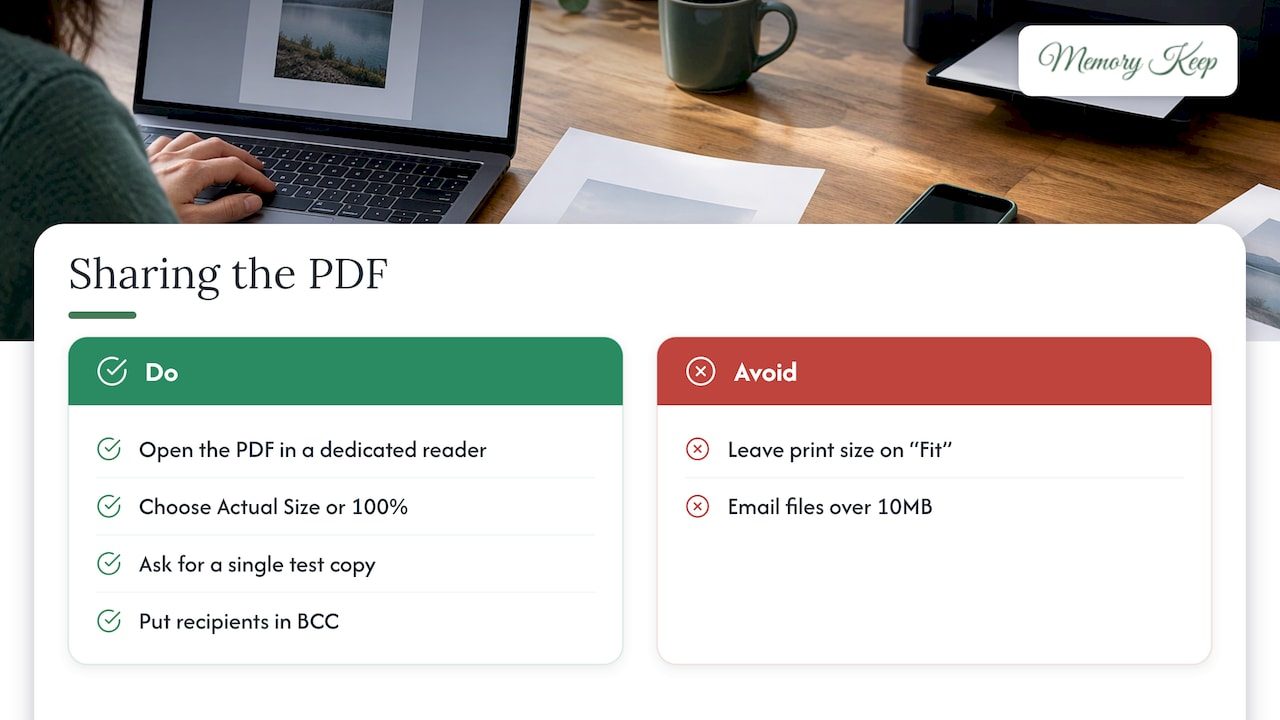
Printing at home. Open the PDF in a dedicated PDF reader rather than a browser tab, and choose Actual Size or 100% in the print dialog. If the viewer is left on “Fit,” it can shrink the design slightly.
Printing at a shop. Take the file on a USB drive or send it ahead, and ask for a single test copy before the full run.
Emailing. Attach the PDF and keep the file small. A common guideline is to stay under 10MB so it arrives reliably. For a larger file, upload it to a cloud folder and send a view-only link. Adobe explains the options for sharing a PDF: by link, by email attachment, or by invitation. When writing to many people, put addresses in the BCC line so they stay private.
Giving it a home. A PDF in an inbox can get lost. A single shareable page that anyone can open at any time is easier for relatives across time zones, and it never needs an attachment.
When the PDF will not save
It happens, and it is rarely your fault. A few quick fixes:
- “Microsoft Print to PDF” is missing on Windows. Richmond’s guide says to press Windows+R, type optionalfeatures.exe, and turn on Microsoft Print to PDF. On newer Macs where print-to-PDF is blocked, open the file in Preview and use File > Export as PDF.
- The print option stopped working. Try File > Save as PDF in place of the print route, as RPI’s IT help suggests in its note on print-to-PDF problems.
- The page looks wrong. Switch browsers, or update the one you use.
- Photos are missing. Scroll the full page first, then turn on background graphics.
If you are still stuck, a full-page screenshot is a reasonable stand-in for a quick keepsake, even though the text will not be selectable.
Know what a PDF is, and what it is not
A browser-made PDF keeps the look of the page, but it removes some of the page’s underlying structure. Morpht, a web agency, notes that such files keep the visual look but strip out headings, which makes them fine for print but less friendly to screen readers. If someone in your family uses a screen reader, a Word file saved with accessibility options turned on is the better thing to send.
A PDF is also a moment in time. The tribute you save on Tuesday will not include the message a friend writes on Friday. That is not a flaw, only the nature of a snapshot. It is why we suggest two things working together: a PDF for the paper in someone’s hands, and an online memorial for everything that keeps coming.
Memorial keepsakes for people and for pets
For many families, saving a memorial is the first step toward something they can hold. Printed programs, photo books and slideshows each serve a different moment. If you are remembering a pet, a small tangible gift can sit beside the photos. Some families like unique pet memorial gifts that can be tucked into a card or planted in a garden, with the memorial page holding the pictures and stories.
Our own keepsakes include downloadable photo books and slideshow videos. If a video is what you need to save, our guide on how to download a memorial slideshow and keep it safe covers it.
Put a QR code on the printed page
The best thing about a printed program is that it can point to more than fits on paper. A QR code, the small square a phone camera can scan, can lead guests straight to the full memorial with every photo and message. Every Memory Keep memorial includes a free scannable QR code, and you can place it on a program, a card or a headstone. Our guide to a funeral program QR code with no reprints shows how to add one, and meaningful ways to use your memorial QR code offers more ideas.
This means the PDF you print today never goes out of date. When more photos arrive, the code still opens the latest version.
A memorial that does not need a subscription
Memory Keep lets you start for free, with limited uploads and features. The Full plan is $15, one time, and it unlocks unlimited photos, videos and features for a memorial. There are no subscriptions or renewals, so the page stays there without a yearly bill to remember. We do not run ads or sell data, because a place for grief should feel quiet and private.
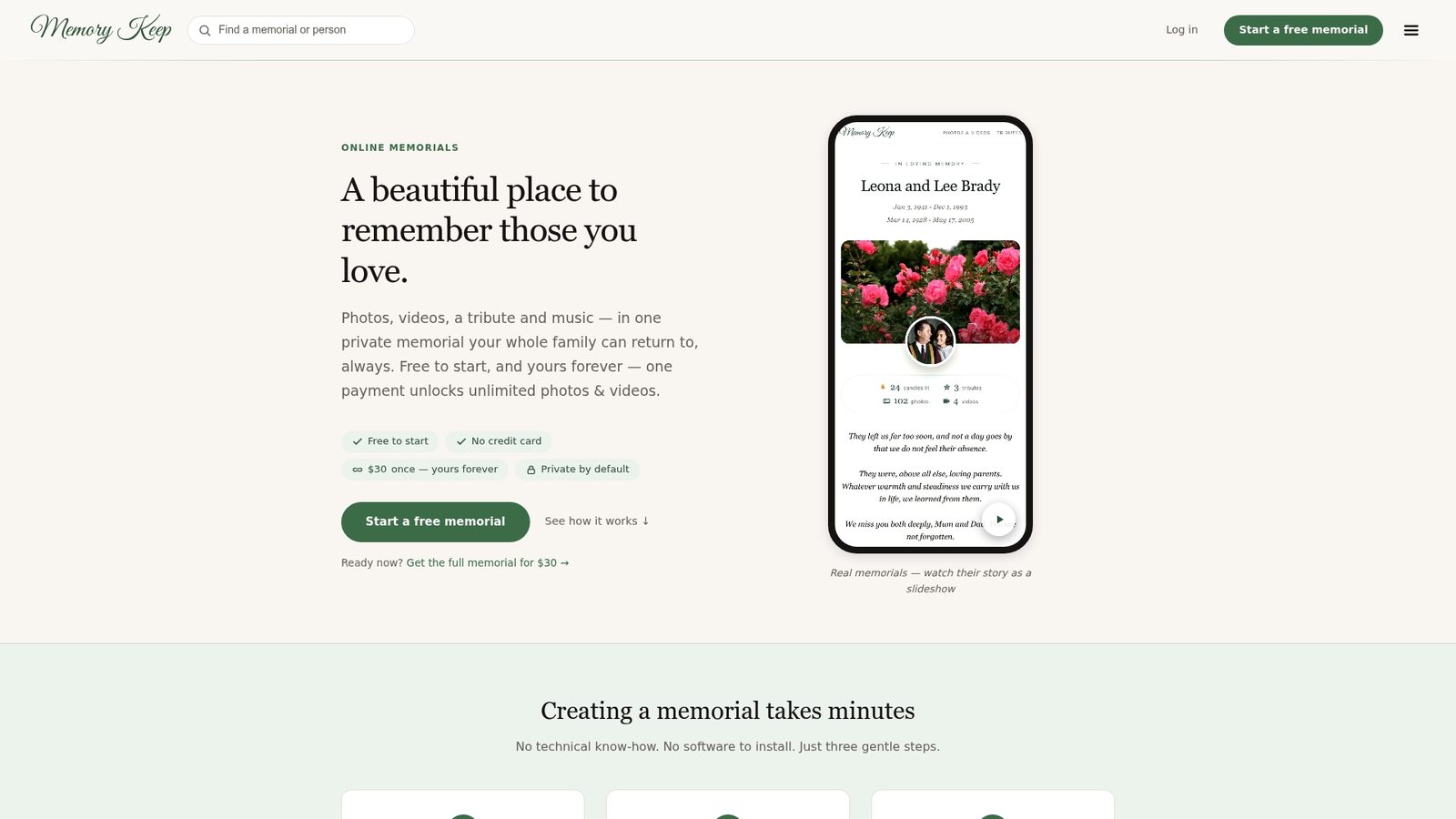
With one memorial you can gather photos, video, audio, a written tribute, visitor messages and an interactive map of life events. Family and friends can add their own photos and videos, which means the work of remembering does not fall on one person. See everything on our features page, or begin at memorykeep.online.
How we think about saving a memorial
When someone dies, the pictures and stories scatter: a phone here, a shoebox there, a thread of messages no one can find again. A PDF is a good way to hold a piece of that in your hands, and we are glad people use it.
What we have seen in the way our platform is designed is that remembrance is not a single document. It is a place family can return to, add to and share across distance. So we built Memory Keep around a permanent page with a unique link, a QR code that works on a program or a headstone, and a printable program that builds itself from what you have already gathered.
We believe you should pay once, not every year, and that a memorial should never be an advertising space. Save the PDF for the service. Keep the memorial for everything after.
Memory Keep
FAQ
How do I save a memorial page as a PDF?
Open the page, press Ctrl+P (Windows) or Command+P (Mac), and choose Save as PDF as the destination. Then click Save and pick a folder. On an iPhone or iPad, tap Share and choose Books.
Can I save a funeral program from Word as a PDF?
Yes. In Word, choose File > Save As (or Save a Copy), select PDF from the file type list, and save. Open the PDF afterward to check names, dates, photos and page order before you print or email it.
Why can’t I save my file as a PDF?
On Windows, the Microsoft Print to PDF feature may be turned off and can be switched on in Windows Features. On a Mac, try opening the file in Preview and using File > Export as PDF. Updating or switching your browser also resolves many cases.
How do I share a memorial PDF with family far away?
Email it as an attachment if it is under about 10MB, or upload it to a cloud folder and send a view-only link. For something that stays current, a memorial page with a shareable link or QR code lets relatives see new photos and messages as they arrive.
Sources
- AARP: 4 Ways to Make a PDF on Your Laptop or Smartphone
- Microsoft Support: Save or convert to PDF or XPS in Office desktop apps
- Duke OIT: How to Save or Print to PDF
- Vivaldi Help: Share pages to other apps
- Adobe: How to convert a web page to PDF
- Adobe: How to share a PDF on a PC
- Illinois State University: Create PDF files from Microsoft Office Applications
- Berklee Online: Saving PDFs with the Print Function
- University of Richmond: Saving a File/Printing to PDF
- RPI: Adobe can no longer print to PDF
- Morpht: Print PDF, more easily said than done