
For most memorial pages, we recommend exporting full images at roughly 1920 to 2560 pixels wide, saved as WebP or JPEG at 75 to 85 percent quality, aiming to keep each file under about 500 to 800 KB. If your browser or device does not support WebP, JPEG works just as well. Before uploading, it is worth checking the specific size and format limits of the memorial platform you are using.
TL;DR:
- Match landscape and hero images to a 16:9 aspect ratio, portrait photos to 3:2, and headshots to 1:1; protect faces and hands when cropping.
- Choose WebP, or AVIF when supported, for smaller photo files; keep JPEG as a compatibility fallback, while PNG and SVG suit transparency and graphics.
- Resize image dimensions before compression, and save a full resolution master first; then check file size and preview the export on a smartphone.
- Before uploading, check the platform’s file size and format limits, then remove GPS metadata to protect the privacy of family members and locations.
Table of Contents
- Recommended Pixel Dimensions and File Sizes for Memorial Images
- Choosing the Right File Format and Quality Settings
- How to Prepare and Upload a Memorial Photo, Step by Step
- Keeping Memorial Photos Sharp Without Slowing the Page Down
- Avoiding Upload Problems and Protecting Privacy
- Why Getting the Size Right Matters More Than It Seems
- Getting Started With Your Own Memorial Page
- FAQ
- Sources
Recommended Pixel Dimensions and File Sizes for Memorial Images
Every photo on a memorial page serves a slightly different purpose, and sizing it correctly helps it load quickly without losing the warmth and detail that make it meaningful. A hero image, the one that greets visitors at the top of a tribute, carries the most emotional weight and deserves the most care in preparation.
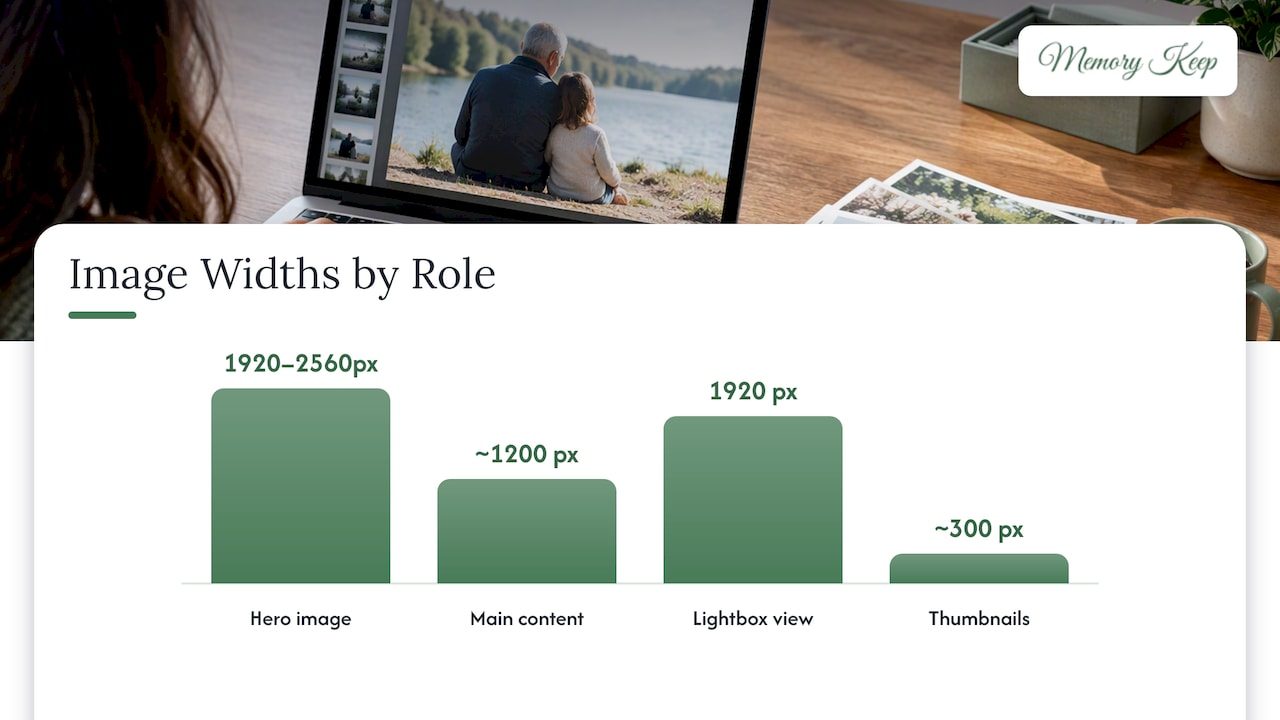
- Hero or fullscreen images: export at 1920 to 2560 pixels wide, aiming for 500 to 800 KB when possible.
- Main content photos: around 1200 pixels wide, targeting roughly 200 to 400 KB.
- Lightbox or fullscreen views: 1920 pixels wide gives visitors a clear, detailed look when they click to enlarge a photo.
- Thumbnails and gallery tiles: about 300 pixels wide is plenty, and these should stay under 100 KB.
These pixel-width ranges align with general web image-size guidance, which recommends similar targets for hero, content, and thumbnail roles across most websites.
Aspect ratio matters too. Landscape photos and hero images tend to look most natural at 16:9, portrait photos crop well to 3:2, and headshots or close-ups often suit a simple 1:1 square. When cropping, protect the face and any hands or shared gestures first since those are usually what a visitor’s eye goes to.
A simple rule keeps this manageable: resize first, then compress. Shrinking the pixel dimensions does most of the work in reducing file size, and compression finishes the job. If you can, hold on to a full-resolution master copy of each photo somewhere safe, even after you upload a smaller version.
Choosing the Right File Format and Quality Settings
Format choice affects both how a photo looks and how fast it loads for someone opening a memorial from a phone at a hospital, an airport, or a quiet kitchen table. WebP is generally the better starting point, and AVIF is worth using where it is supported, since both tend to produce smaller files than JPEG at a similar visual quality, according to MDN’s image format guidance.
WebP images are generally smaller than comparable JPEG files at similar visual quality, according to Google’s WebP compression study. That difference can mean a memorial gallery loading in a couple of seconds instead of ten, especially on a slower mobile connection.
- WebP (or AVIF where supported): the smaller, more efficient choice for most photos.
- JPEG: a dependable fallback, exported at 75 to 85 percent quality for strong savings with little visible loss.
- PNG: best reserved for images needing transparency or for simple graphics rather than photographs.
- SVG: suited to icons and logos, not photos.
Google’s own PageSpeed Insights guidance recommends keeping JPEG quality around 85 or lower, and using progressive JPEG encoding for larger images so they appear to load in stages rather than all at once. AVIF offers strong compression but currently has narrower browser support and does not render progressively the same way JPEG does, so a JPEG fallback is still sensible for widest compatibility.
How to Prepare and Upload a Memorial Photo, Step by Step
Preparing a photo for a memorial page does not take long once you know the order of operations. Following these steps in sequence helps the finished image look its best and load smoothly for everyone visiting the tribute.
- Pick the image’s role first. Decide whether it is a hero photo, a gallery image, or a thumbnail, then resize to the matching pixel width from the ranges above.
- Crop to the right aspect ratio and save a master copy before you compress anything.
- Export as WebP, or JPEG as a fallback, at the quality settings recommended above, then check the resulting file size.
- Strip GPS and location metadata before sharing publicly, since many phones embed this information automatically in photos.
- Preview the file on a smartphone before uploading, and re-compress if it still looks too large or loads slowly.
Pro Tip: When you are not sure which format to pick, JPEG at 80 percent quality is a safe, widely compatible choice that still saves meaningful file size.
If you are preparing photos for a shared family gallery, our guide to choosing photos for a memorial walks through which images tend to mean the most to visitors.
Keeping Memorial Photos Sharp Without Slowing the Page Down
A memorial page should feel steady and calm to visit, not jumpy or slow. One of the simplest ways to protect that experience is to reserve space for each image before it loads, using width and height attributes or the CSS aspect-ratio property. This prevents the page from shifting around as photos finish loading, which Web identifies as a leading cause of layout shift.
For platforms that support it, srcset and sizes let a browser choose the right image size for each visitor’s screen automatically, rather than sending a large desktop image to a small phone. Most contributors uploading to a memorial page will not need to manage this directly since the platform handles it behind the scenes, but it helps to know it is happening.
- Reserve layout space for every image using width/height or
aspect-ratio. - Provide more than one image size where the platform allows it.
- Serve WebP automatically where the visitor’s browser supports it.
Pro Tip: If a gallery photo seems to “jump” the page as it loads, that is usually a missing reserved dimension, not a problem with your photo itself.
Avoiding Upload Problems and Protecting Privacy
Before uploading, check the maximum file size and accepted formats on whatever memorial platform you are using. Limits vary by site, and some impose caps as high as 20 megabytes even though much smaller files perform far better, according to general website image-size guidelines.
- If an upload is rejected, try converting to WebP, lowering JPEG quality, or resizing to the pixel widths above.
- Strip EXIF and GPS metadata before sharing photos publicly, since this protects the privacy of family members and locations.
- When in doubt, our help center walks through upload steps and common fixes.
- For large video files alongside your photos, this video compression guide covers similar preparation steps.
Why Getting the Size Right Matters More Than It Seems
Grief already asks enough of people without a slow-loading page adding friction to the moment someone opens a tribute to someone they loved. We have found that the technical side of memorial photos, pixel width, file format, compression, is not separate from the emotional side. A photo that loads instantly on a phone at 2 AM, when someone cannot sleep and wants to see a familiar face, matters as much as the photo itself.
We built Memory Keep around that idea: our platform supports families preserving and sharing photos, videos, and tributes for people and pets they have lost, and getting the technical details right is part of how we try to make that experience feel steady rather than frustrating. For readers who want support beyond the technical, bereavement care resources can offer additional comfort alongside the practical steps here.
— Memory Keep
Getting Started With Your Own Memorial Page
We support the common web image formats covered here, WebP, JPEG, and PNG, along with help articles that walk through preparing and uploading photos for a tribute.
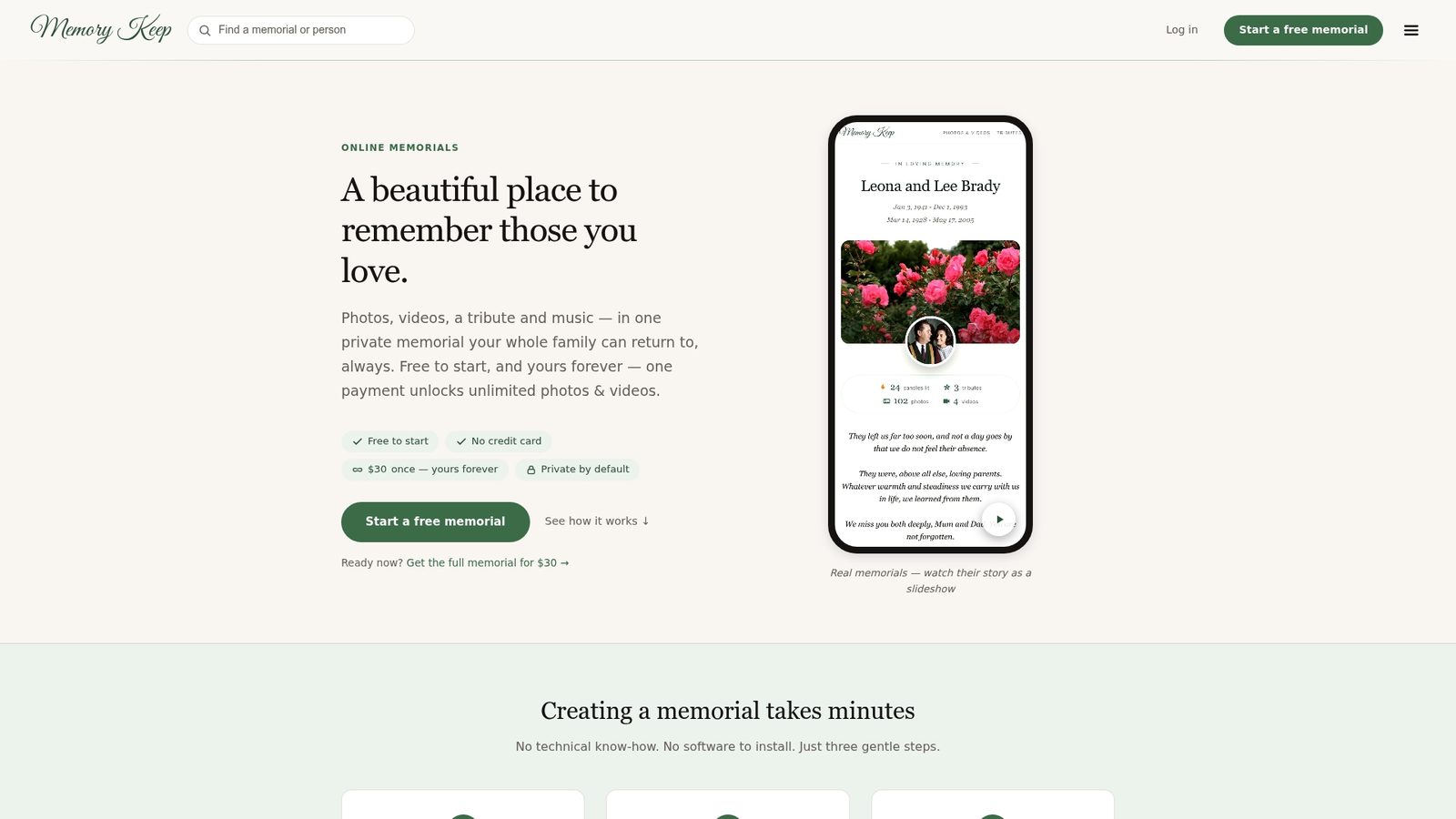
- Our Free plan lets you start a memorial with limited uploads to see how it feels.
- Our Full plan is a $15 one-time upgrade, unlocking unlimited photos, videos, and keepsakes for that memorial with no subscription afterward.
- Our features page outlines the galleries, maps, and keepsake tools available once a memorial is created.
If you are ready to begin, you can create a memorial page today and start adding the photos that matter most, prepared exactly the way this guide describes.
FAQ
What pixel width should I use for a memorial photo?
For most roles, 1920 to 2560 pixels wide works well for hero or fullscreen images, around 1200 pixels for standard gallery photos, and about 300 pixels for thumbnails. These ranges match general web image-size guidance used across most websites.
Should I use WebP or JPEG for memorial photos?
WebP is generally the better choice since it produces files that are smaller than comparable JPEGs at similar quality, according to Google’s compression study. JPEG remains a reliable fallback, especially exported at 75 to 85 percent quality.
How large can a memorial photo file be before uploading?
A practical target is 500 to 800 KB for large hero images and under 100 KB for thumbnails, though exact limits depend on the platform you are using. Check the specific upload limits before preparing your files, since some platforms accept much larger files than they recommend for best performance.
Does Memory Keep limit how many photos I can upload?
Our Free plan includes limited uploads, while the Full plan removes those limits for a one-time $15 fee per memorial. Either way, following the sizing guidance above helps your photos load quickly once they are part of a memorial page.
Should I remove metadata before uploading a memorial photo?
Yes, stripping GPS and location data is a sensible privacy step before sharing any photo publicly. Most phones and photo apps include an option to remove this information during export or sharing.